Staff, accounts and permissions
Add doctors and reception, give them sign-ins and decide what each can do.
1The staff list
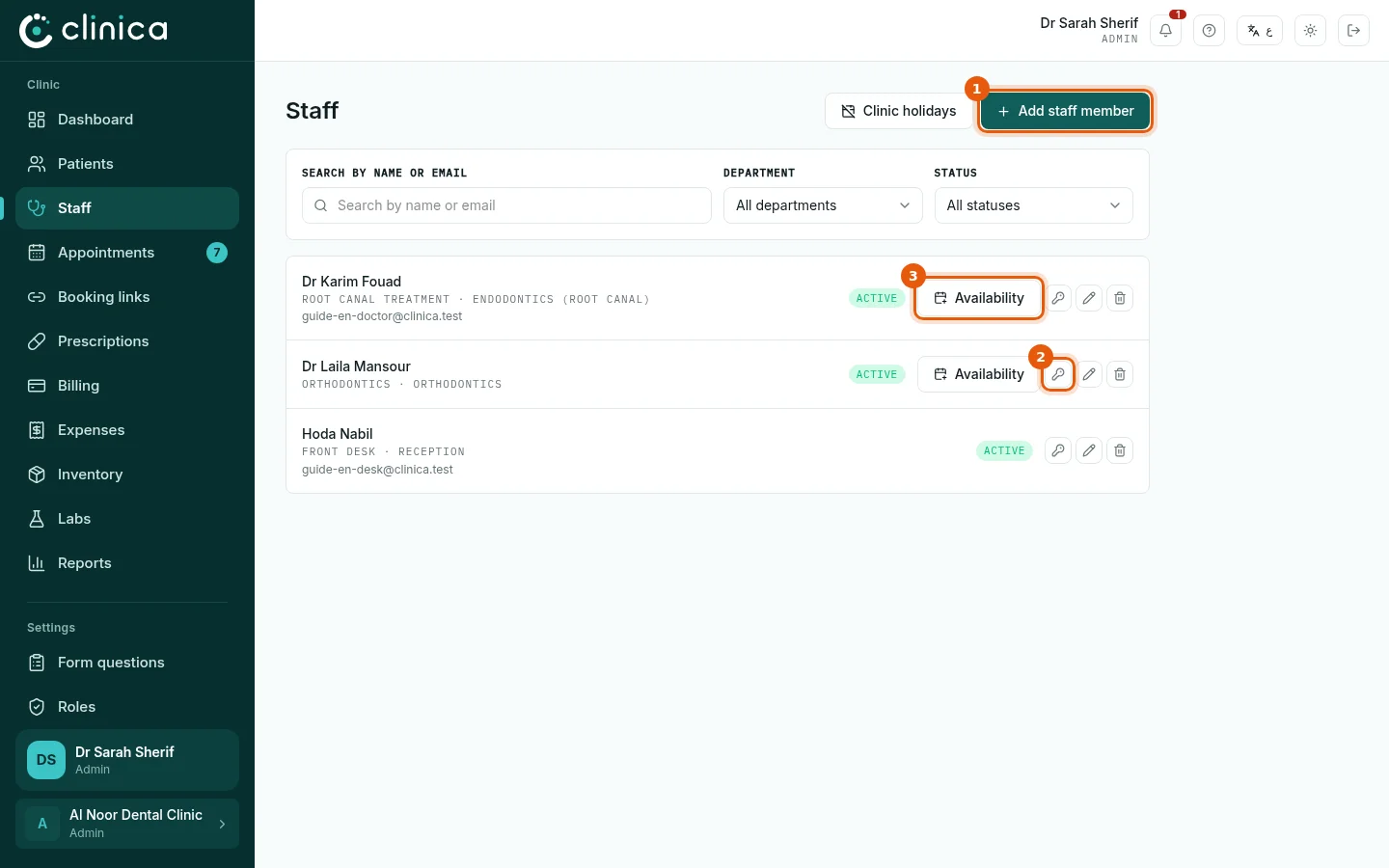
Open Staff. Press 1 Add staff member to add someone. On each row, 2 creates or changes their sign-in, and 3 Availability sets a doctor's working hours.
2Add a member of staff
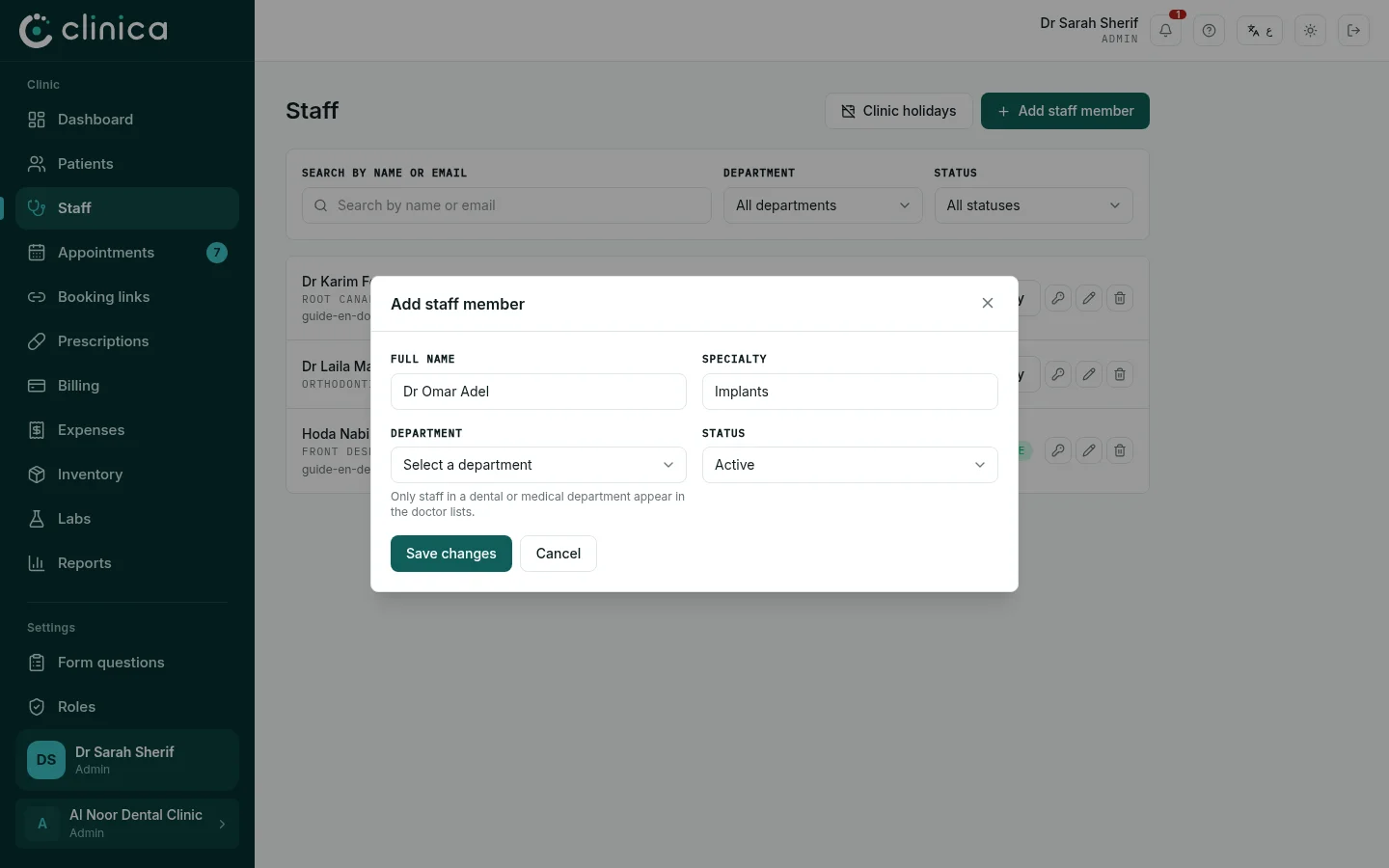
Write their full name and specialty and choose their department. The department matters: only people in a medical or dental department appear as doctors in schedules and bookings; reception, nursing and administration do not.
3Give them a sign-in
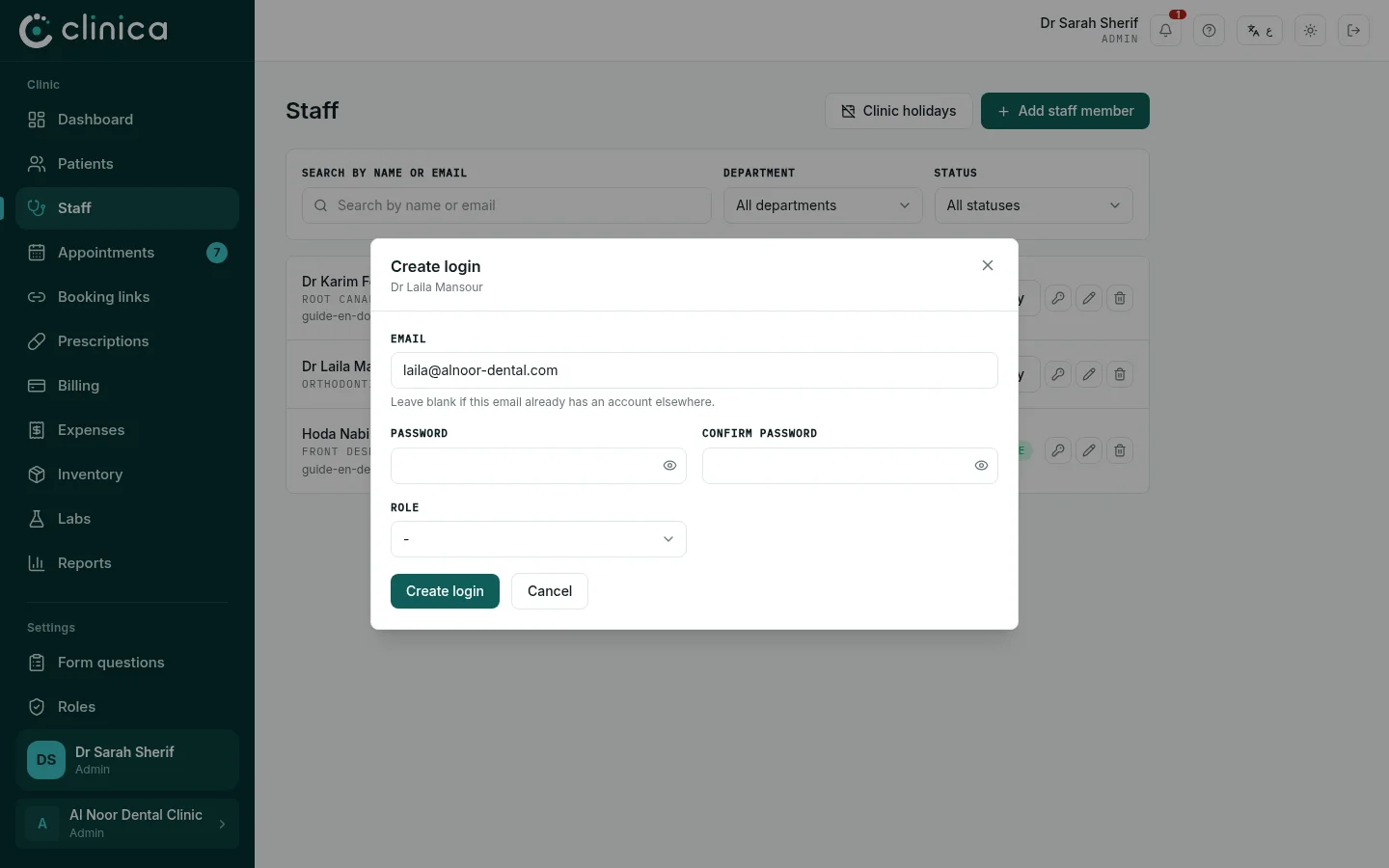
Press Create login on their row. Enter their email, a first password and their role, then press Create login. Send them the email and password; they can change the password after signing in.
4Roles and permissions
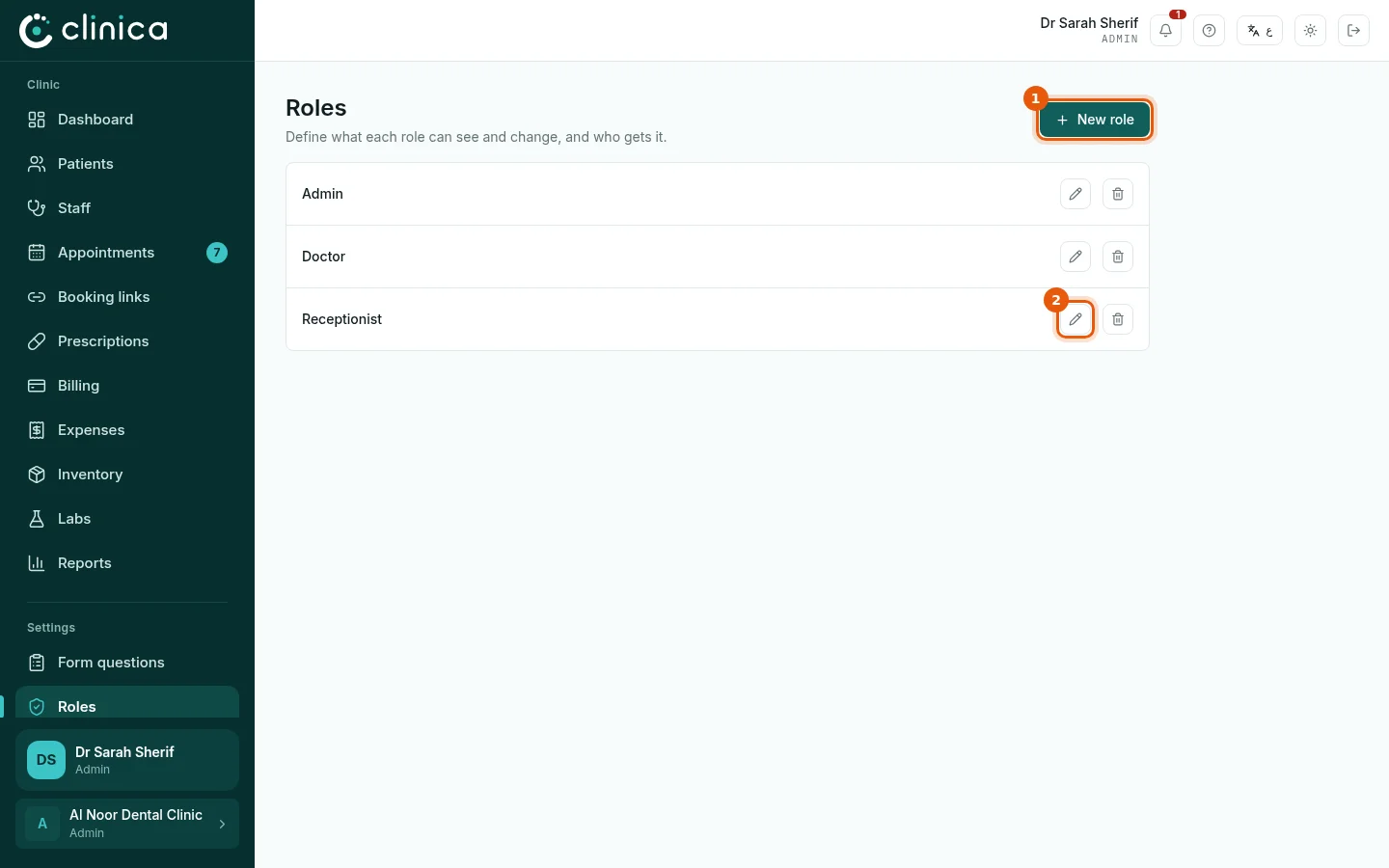
Open Roles. Every clinic starts with three roles: Admin, Doctor and Receptionist. Press 1 New role to add your own, or 2 Edit to change one.
5Choose what each role can do
For each part of the system choose No access, Read only or Read & write. For appointments, schedules, prescriptions, invoices and booking links you can also choose Own only, so a doctor sees only their own patients' records. Press Save role; everyone with that role gets the change at once.
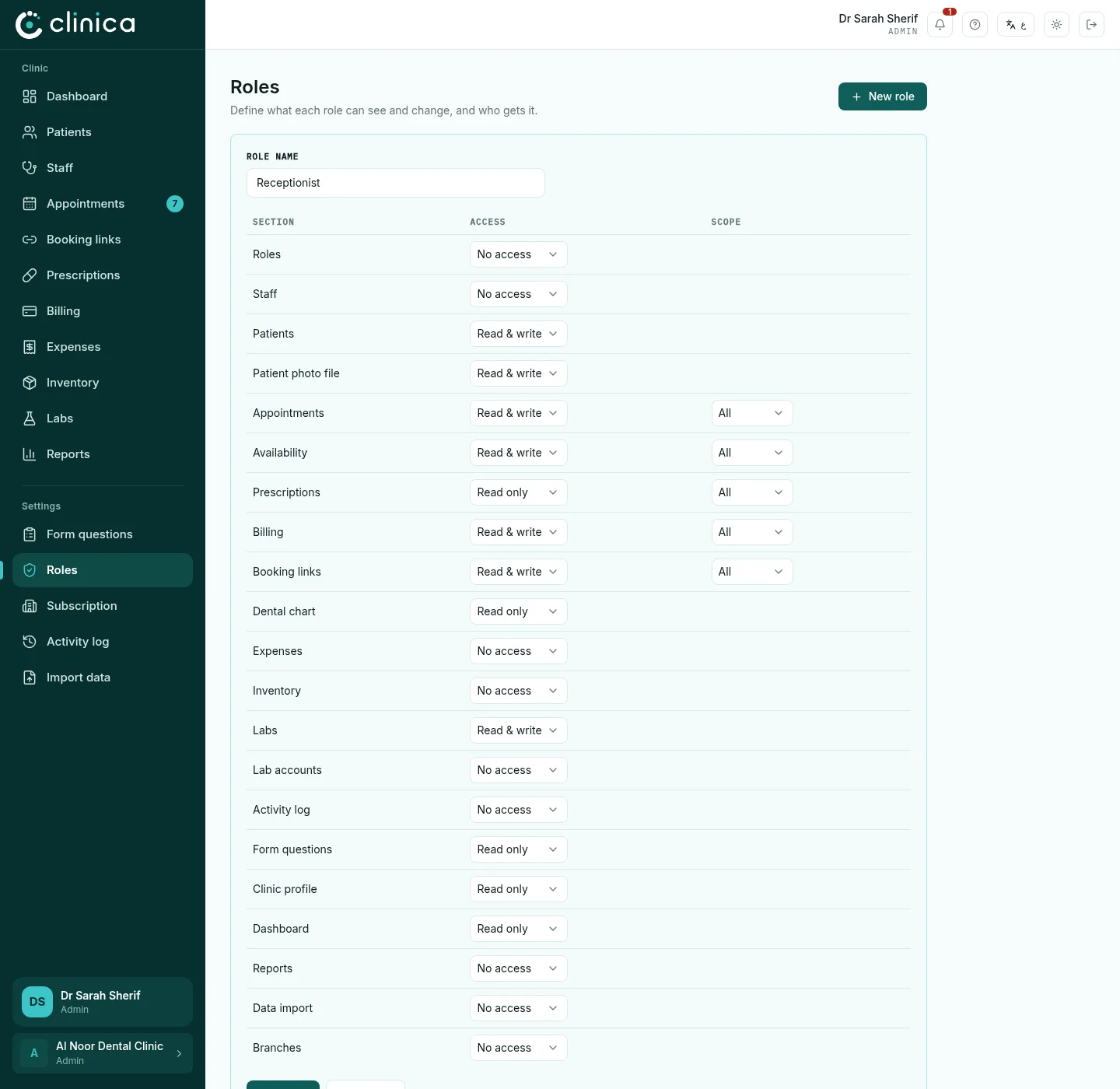 Only the parts included in your plan are listed.