Working hours and free times
Each doctor's week, a changed day, leave, and clinic holidays.
Appointments and booking links can only use free times in a doctor's schedule, so set the schedules up before you start booking.
1The usual week
In Staff, press Availability next to the doctor. On Weekly schedule, choose the period (a month, three months or a year), the working days, the start and end time and the length of one appointment, then press Generate schedule. The calendar below shows how many times each day has and how many are booked; press a day to see its times.
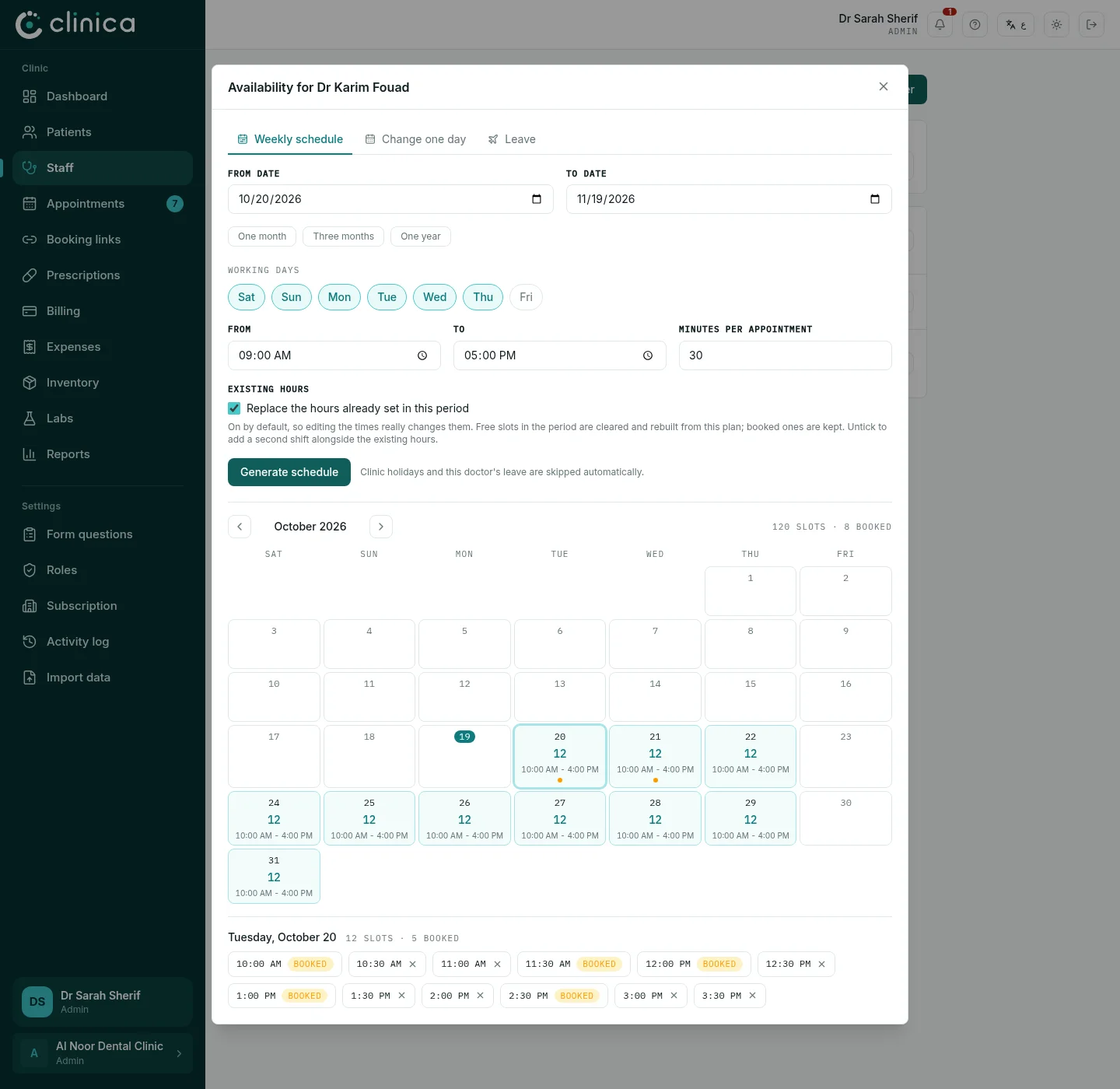 Generating again for the same period replaces the free times with the new hours. Booked appointments are never touched.
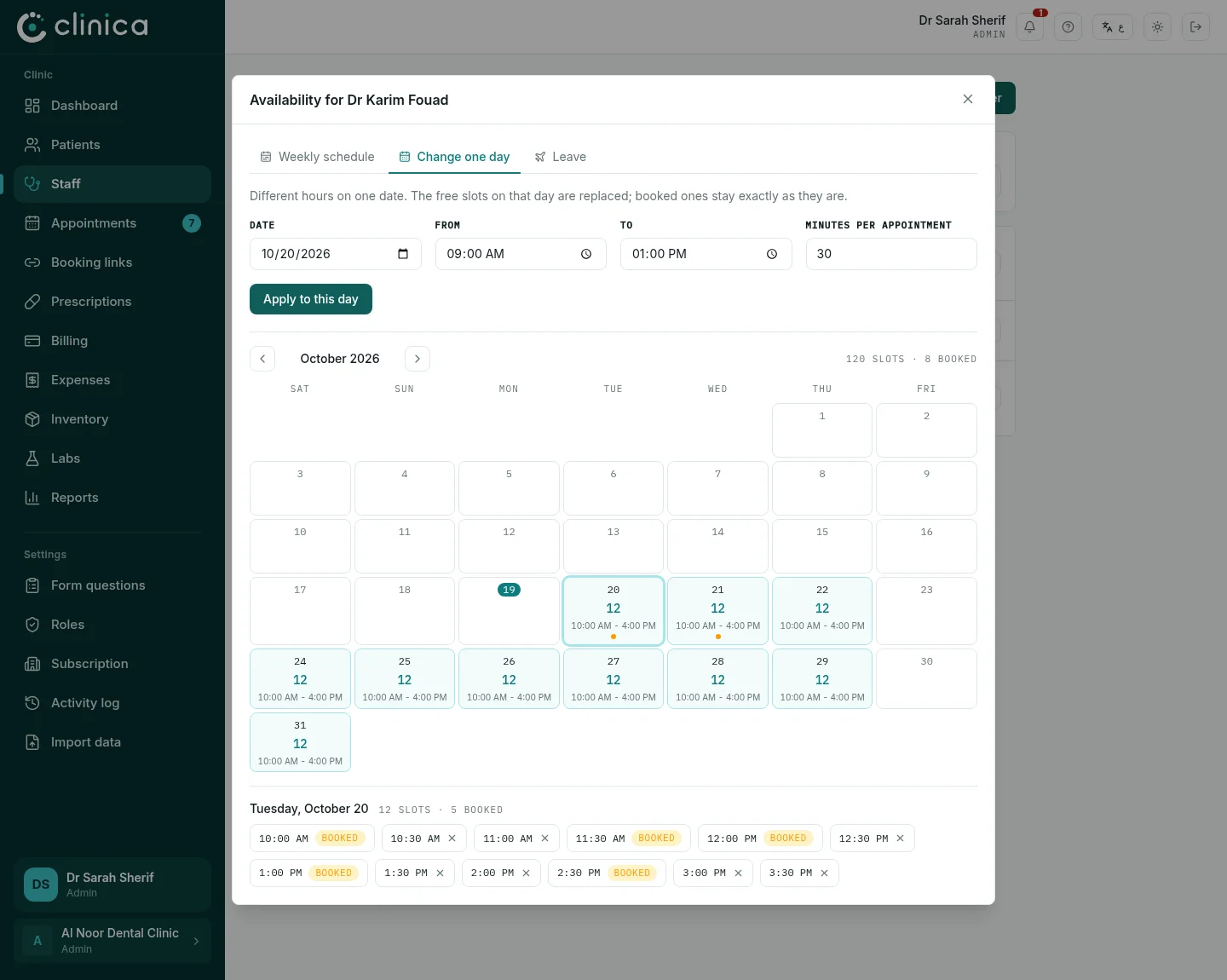
2A different day
When one date has different hours, use Change one day: choose the date and its hours, then press Apply to this day. Bookings on that day stay as they are.
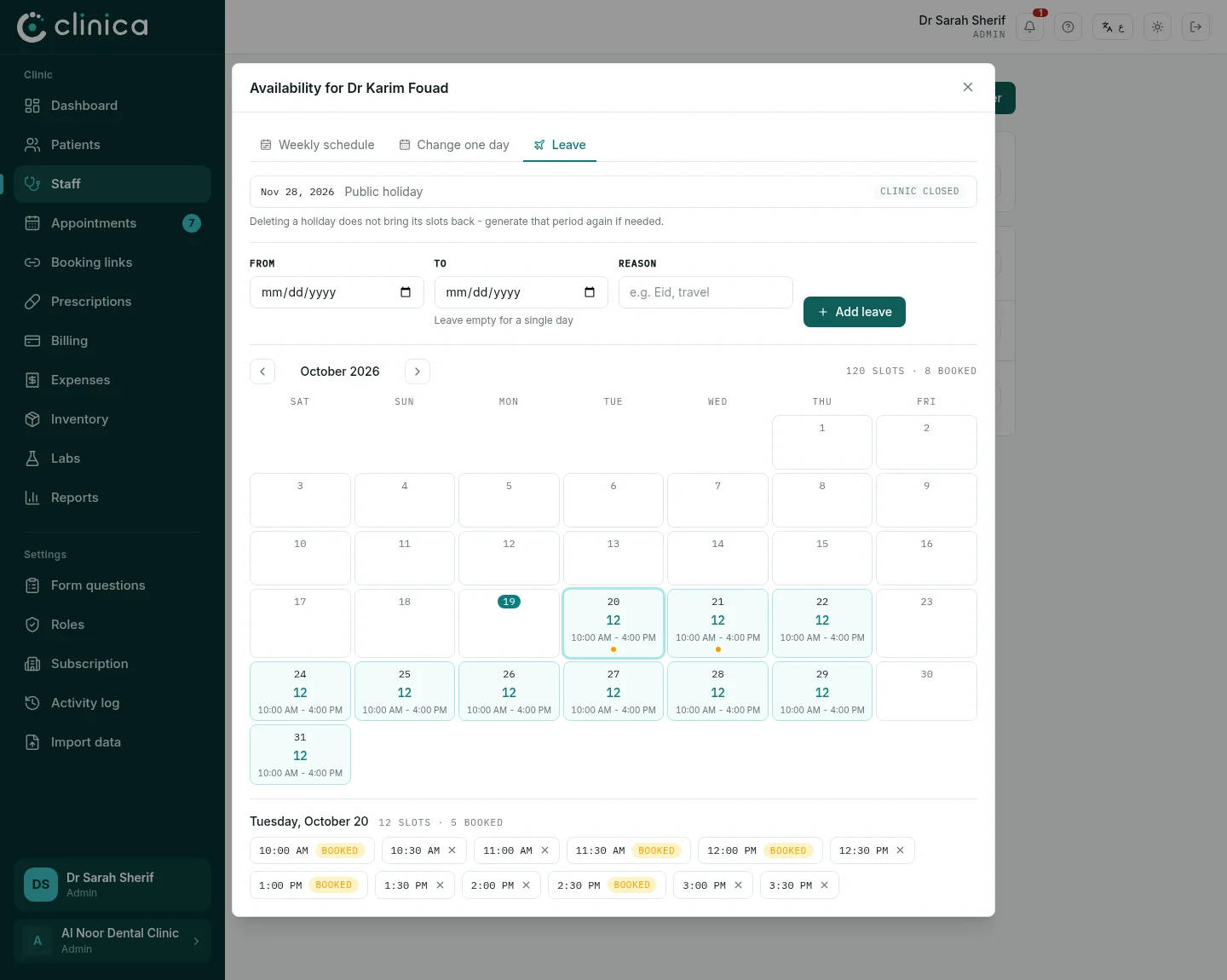
3A doctor's leave
On Leave, add the dates the doctor is away. Their free times on those days are removed and no new ones are created; if appointments are already booked then, you are shown which ones to move.
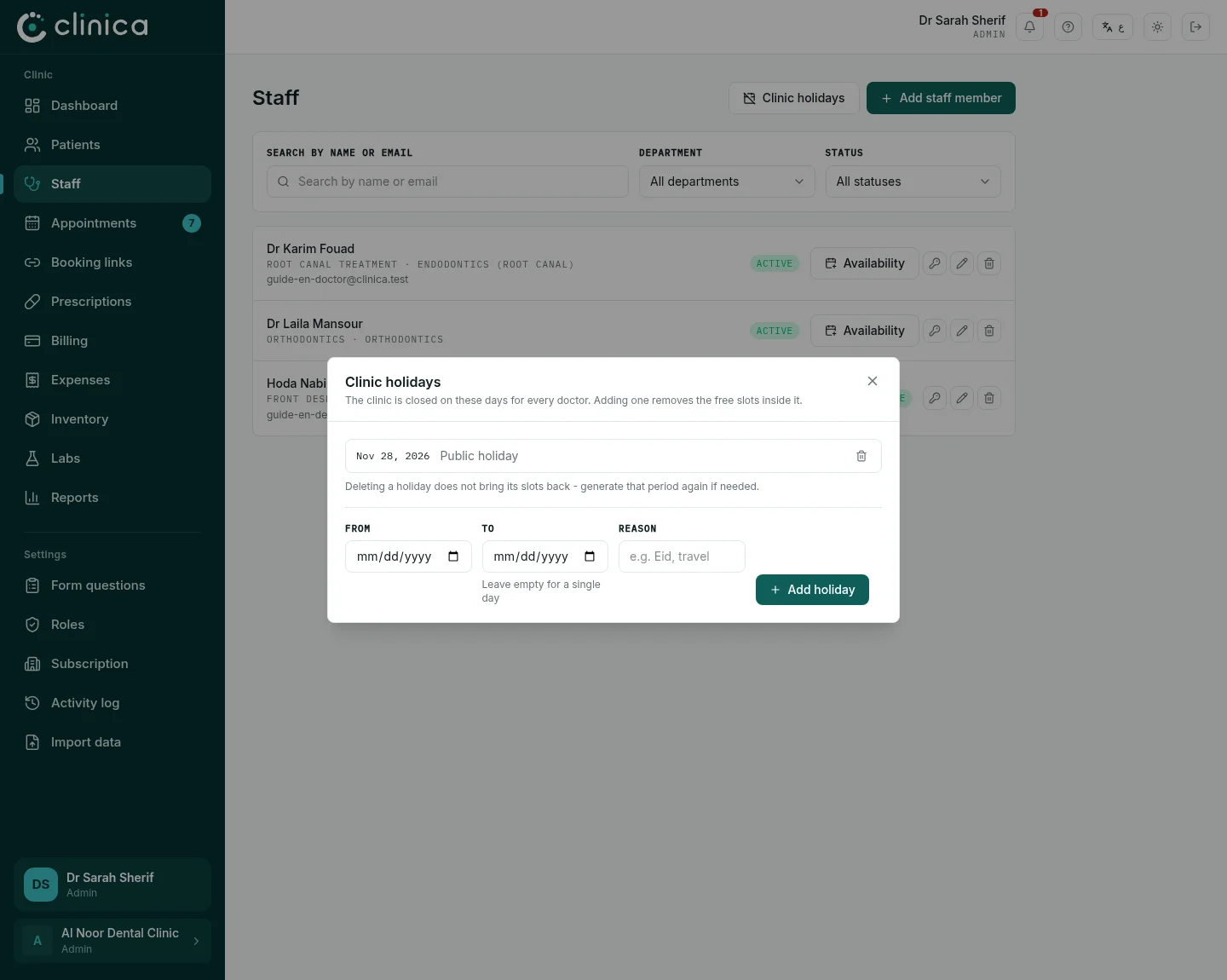
4Clinic holidays
Days the whole clinic is closed, such as public holidays, go in Clinic holidays at the top of the staff list. They close every doctor's schedule at once.