Branches
Run several locations from one account: each branch with its own diary, staff, stock and figures.
Every clinic starts with one branch, its main one, which carries the clinic's own name and address. On a plan that includes more than one branch, you can add the others. Patients, staff, roles and the subscription stay one account for the whole clinic.
1Your branches
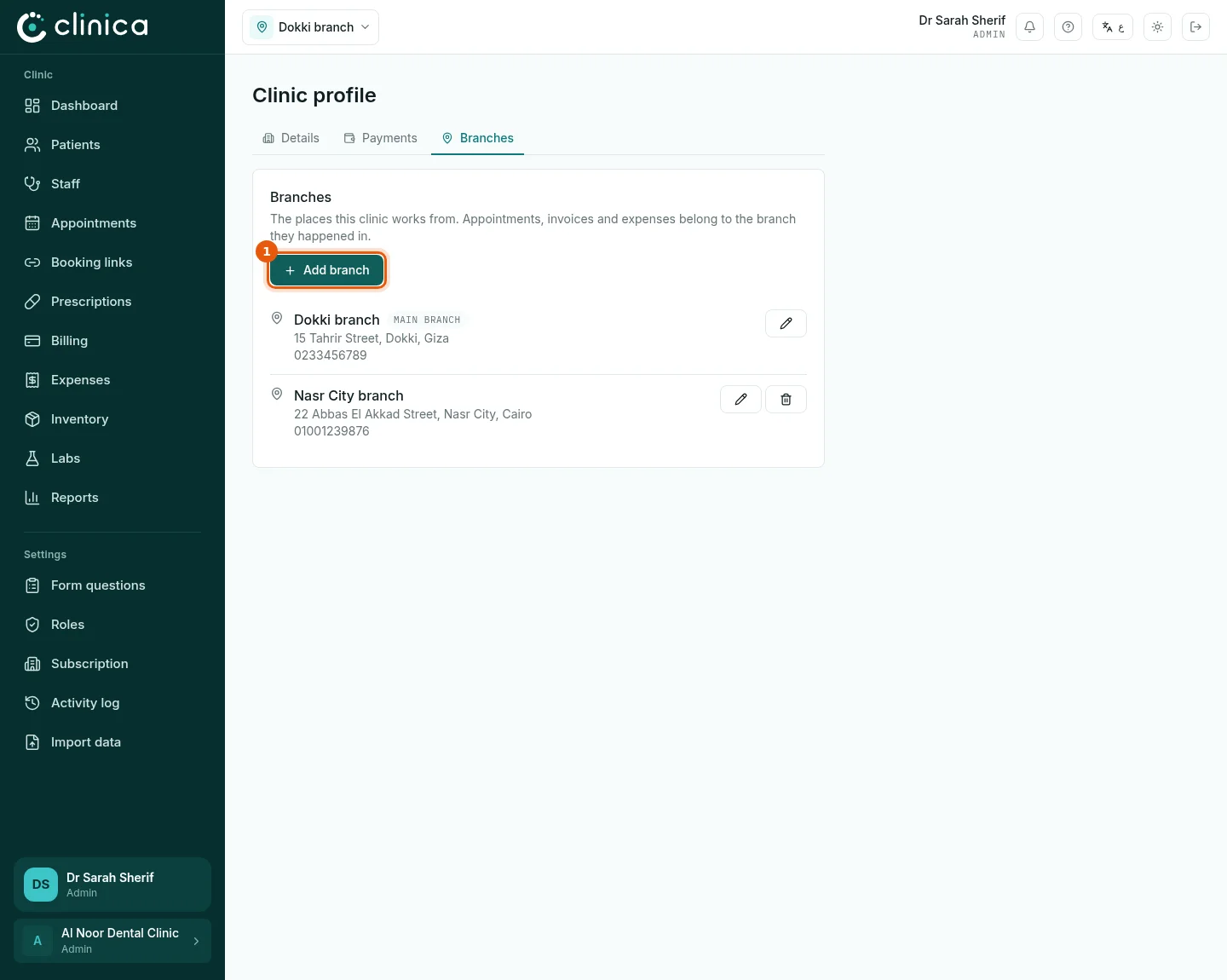
Open the clinic profile and choose Branches. Each branch is listed with its address; the main branch is marked. Press 1 Add branch to add one.
2Add a branch
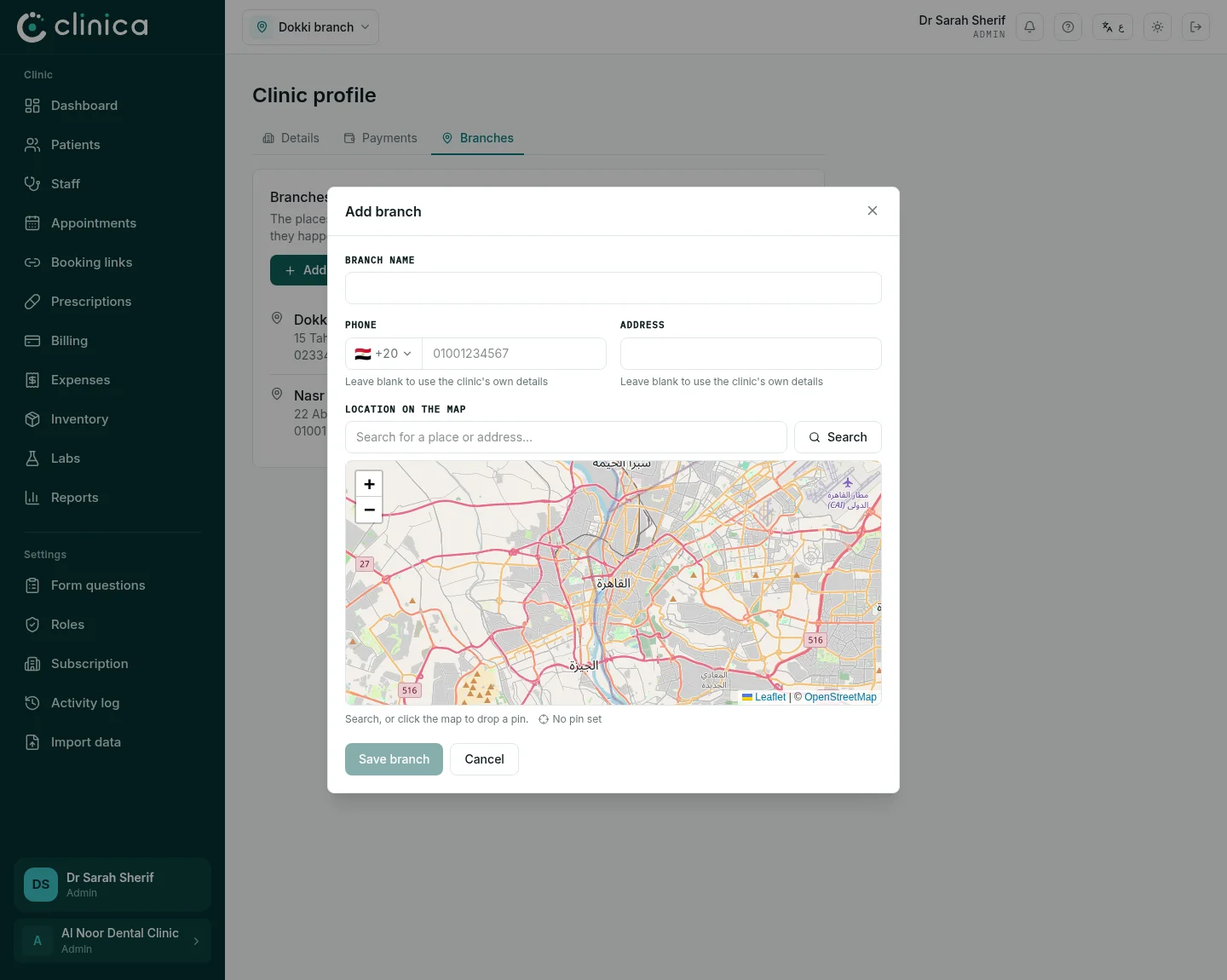
Write the branch's name, phone and address and set its pin on the map, then press Save branch. Patients booking at that branch see its own address and directions. A branch you no longer use is closed with Close branch: its records stay, but nothing new can be booked there.
3Switch between branches
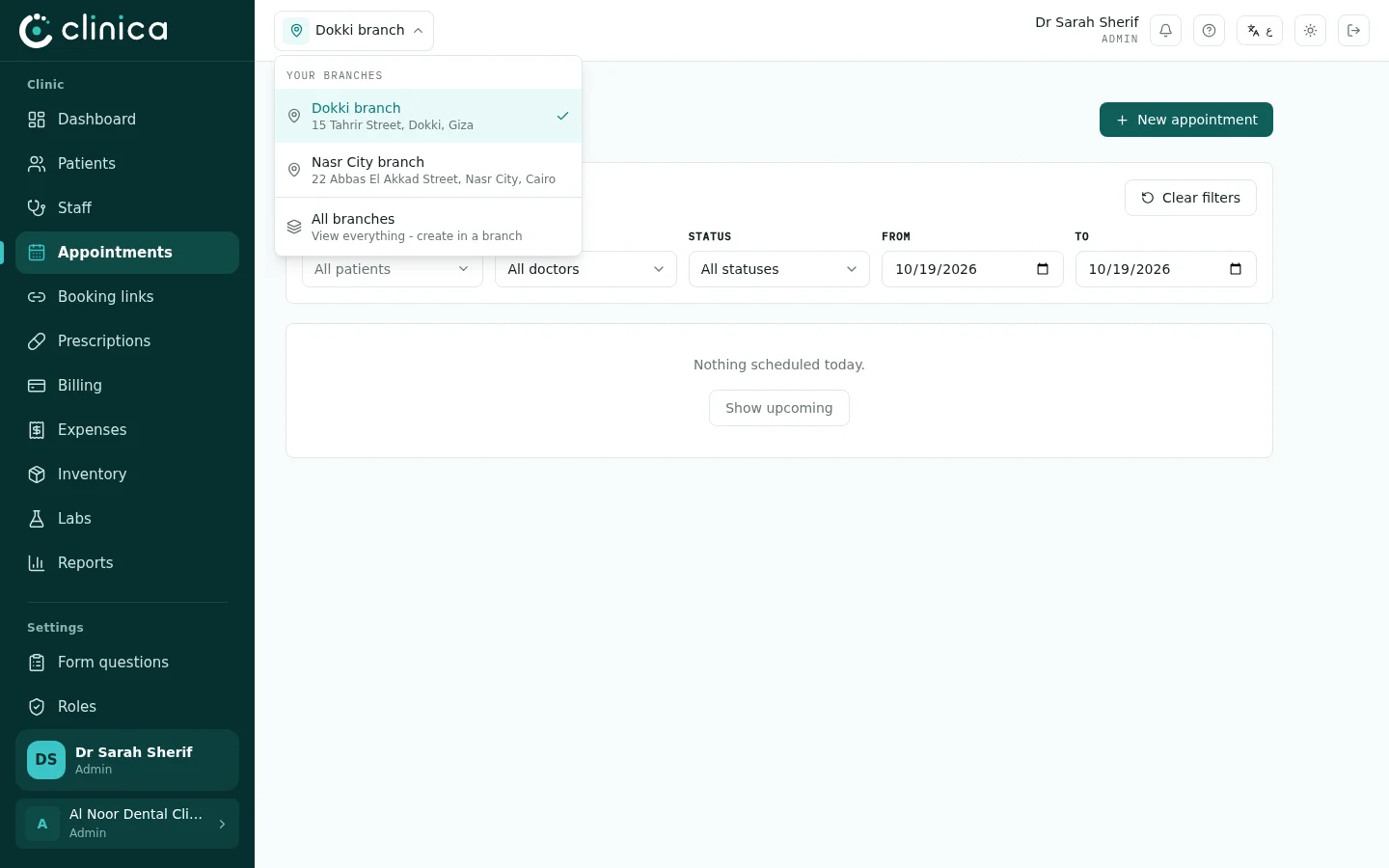
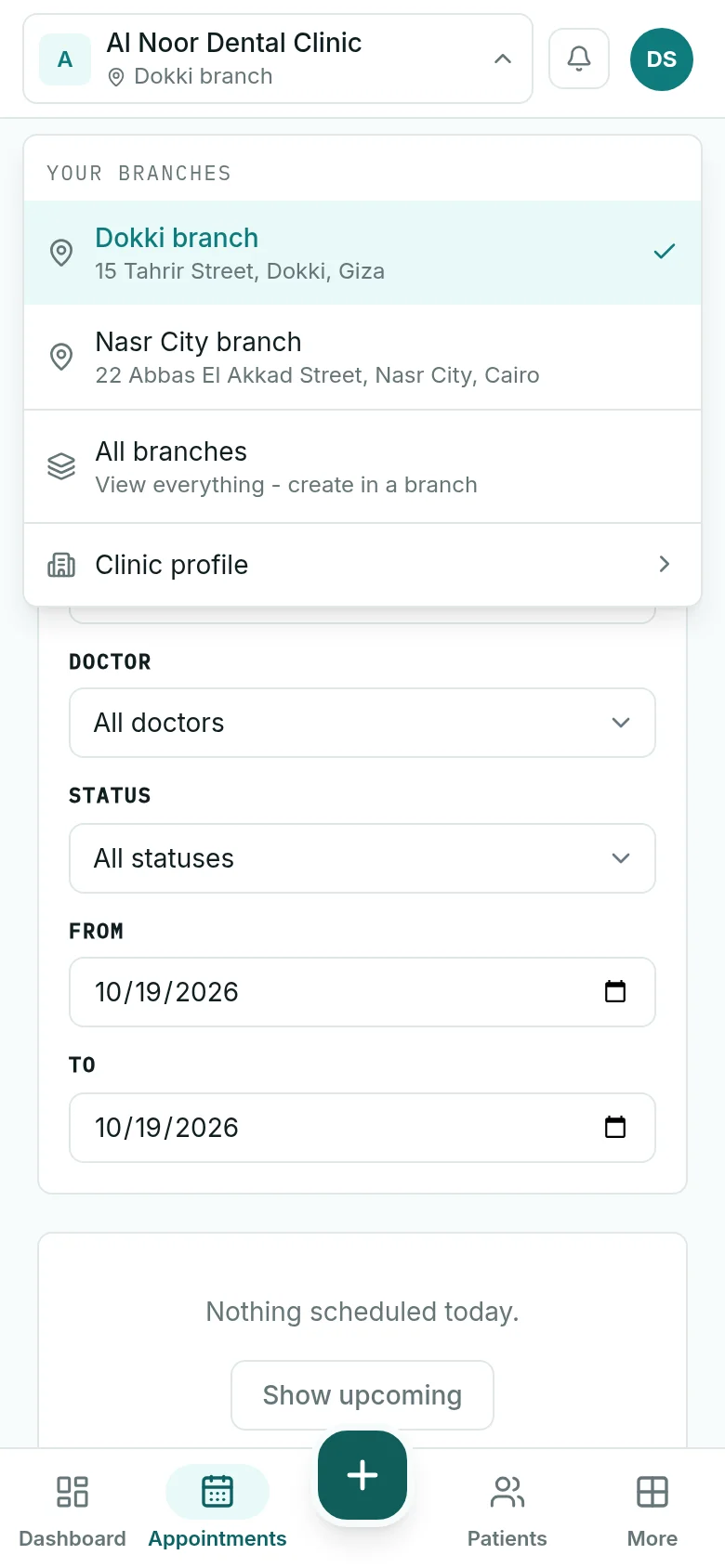
The branch you are working in is shown at the top of the screen; press it to move to another. Appointments, schedules, invoices and stock always show that branch only. All branches shows every branch together for reading; to add or change anything, choose the branch it belongs to first.
 Work stays in the branch it started in: an invoice, a treatment or a lab case recorded at one branch is changed from that branch only, so every branch's takings and stock stay correct.
4Who works where
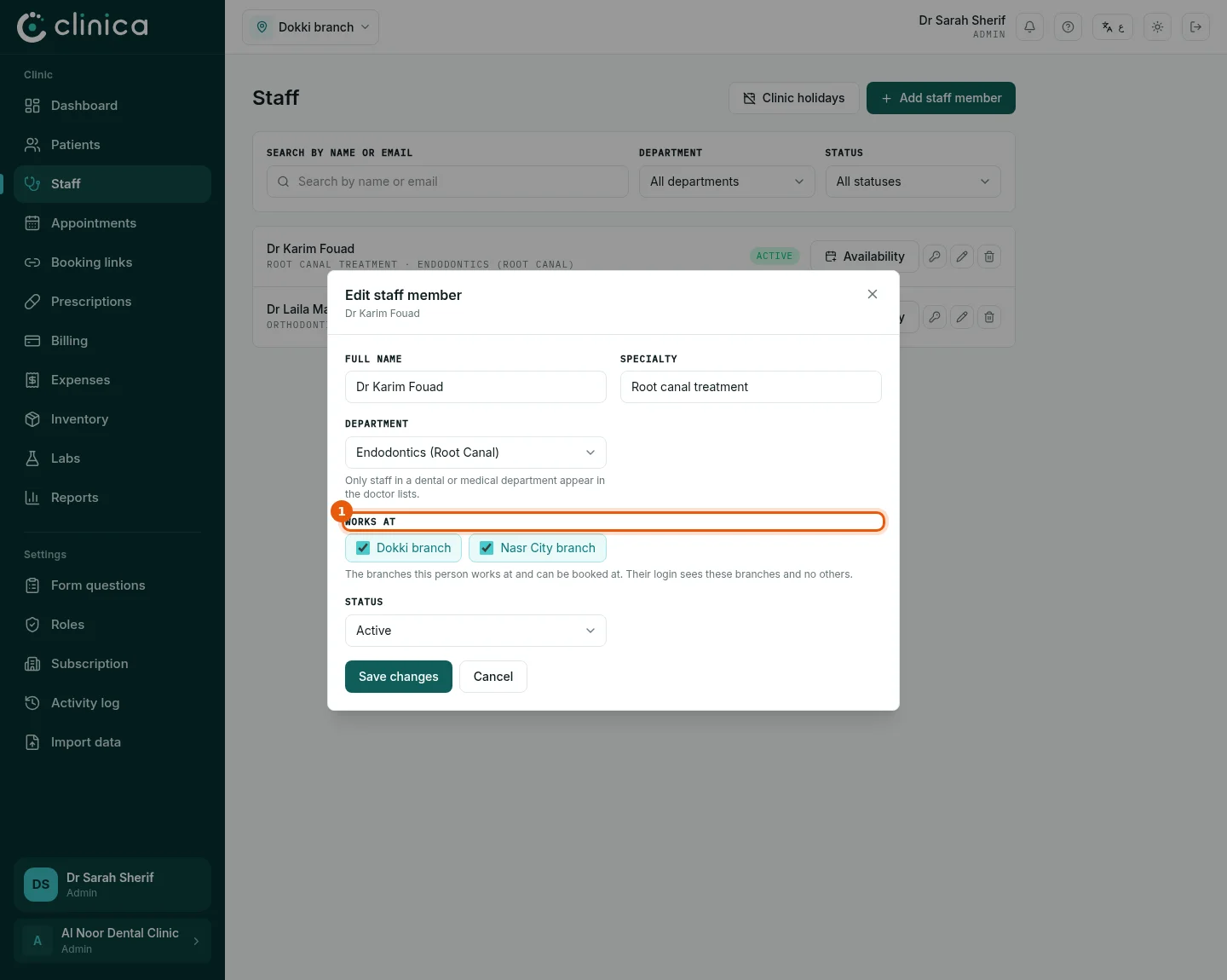
In Staff, edit a member of staff and tick the branches under 1 Works at. Their sign-in then opens only those branches, and a doctor's schedule is built per branch. Seeing every branch, including ones added later, is a separate permission on the same form that only someone who runs the whole clinic can give.
5Patients, stock and reports
A patient's file can be opened at every branch they are seen at, with their full medical history; what they were billed stays with the branch that billed it. Each branch keeps its own stock of the clinic's items. The dashboard and the reports show each branch's figures, and the total of all branches beside them.