Labs
Your labs, their prices and every case you send them, from sending to fitting.
1The cases list
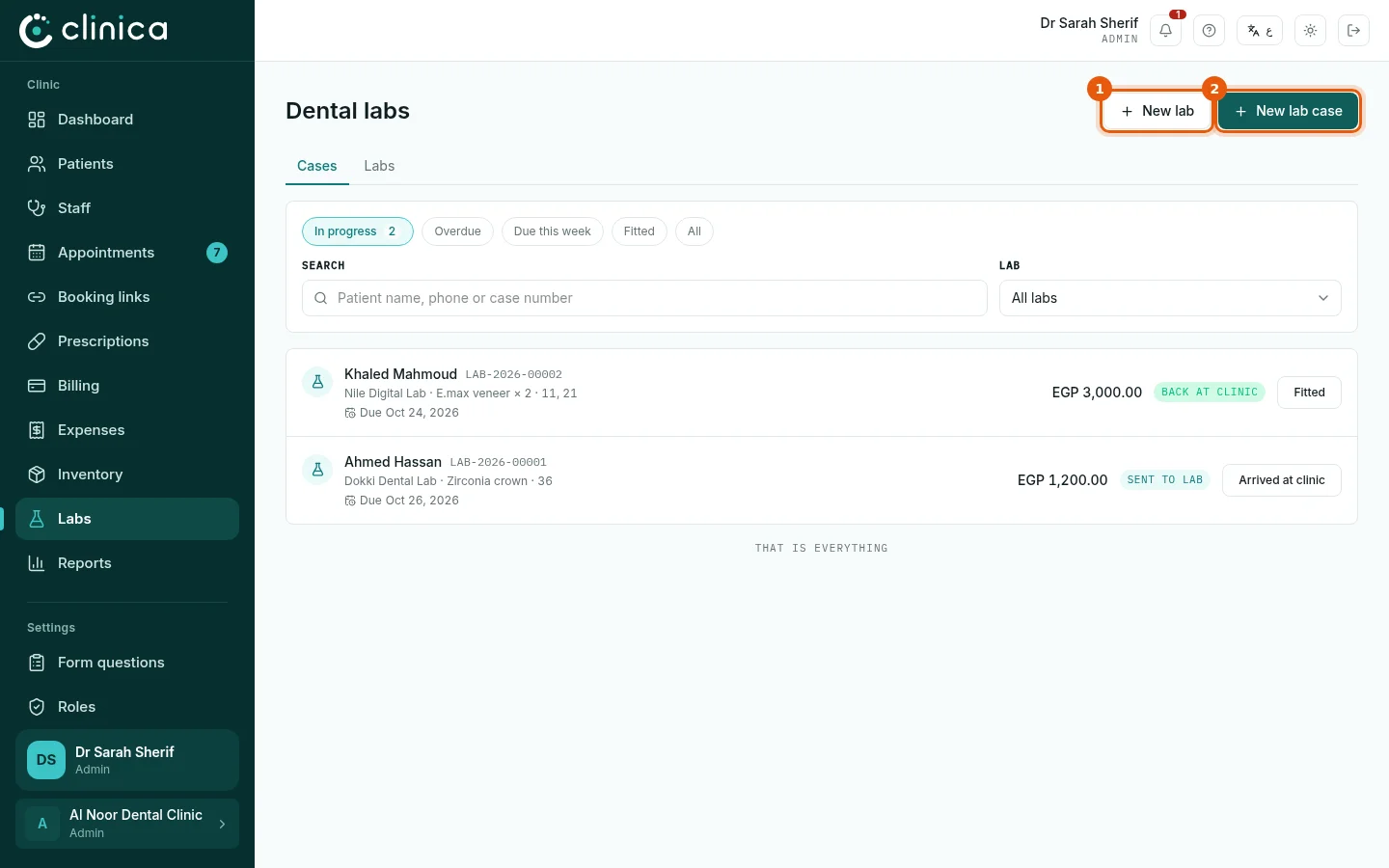
Open Labs. Cases shows every case with its patient, lab, work, teeth, due date and status; filter by in progress, overdue or due this week. The button on each case moves it to its next step, for example when it arrives back at the clinic or is fitted. Press 1 New lab to add a lab, 2 New lab case to send work.
2Add a lab and its prices
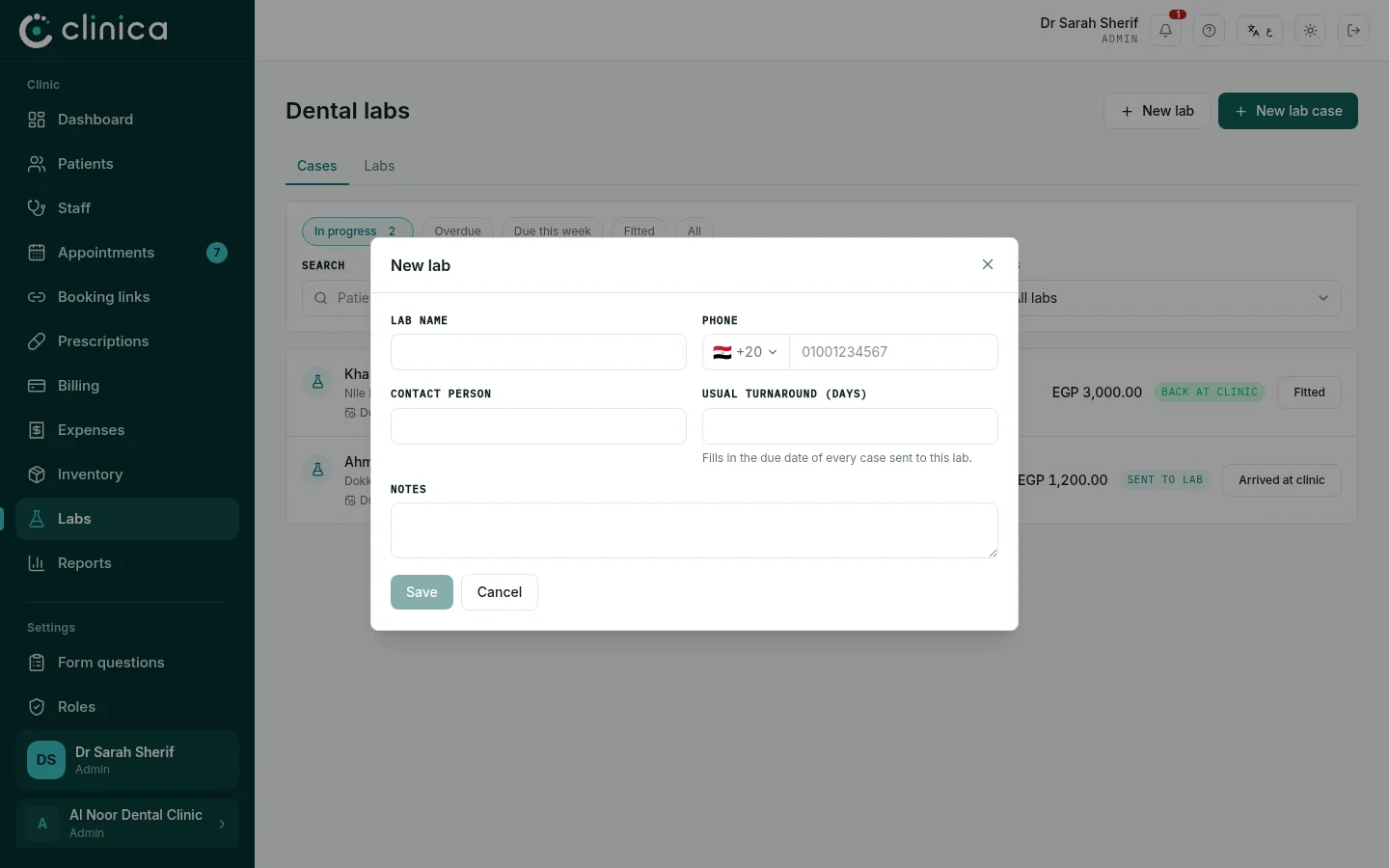
Write the lab's name, phone, contact person and its usual turnaround in days, which sets each case's due date. Then, in Labs, open the lab to add its price list and follow its account: what you owe it and what you have paid.
 Lab prices and accounts are visible only to roles given the lab accounts permission.
3Send a case from the labs page
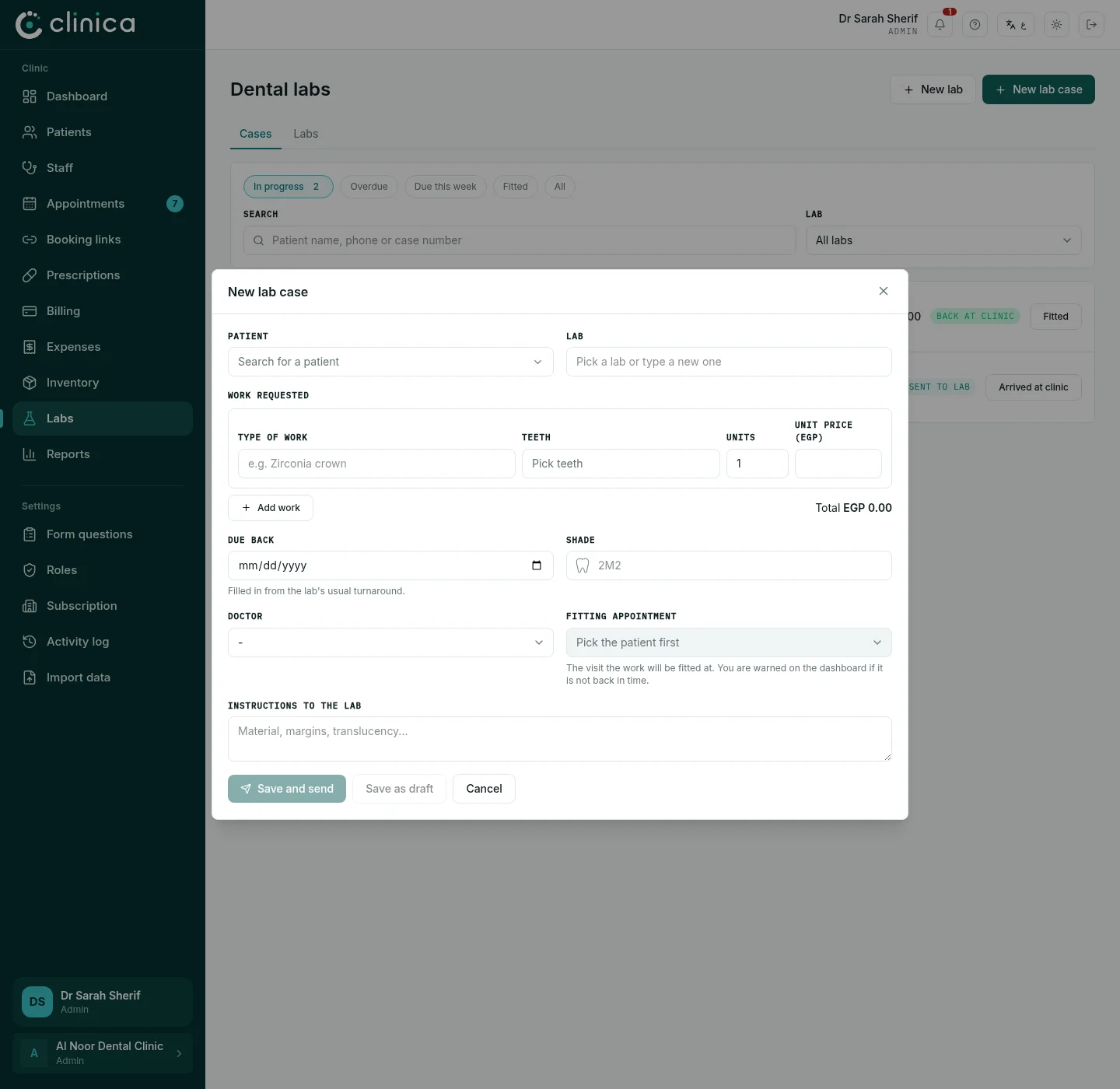
Press New lab case. Choose the patient and the lab, add the work from the lab's price list and pick the teeth, the shade and the due date, with any instructions. Press Save and send, or Save as draft if it is not leaving today.
4Send a case from the dental chart
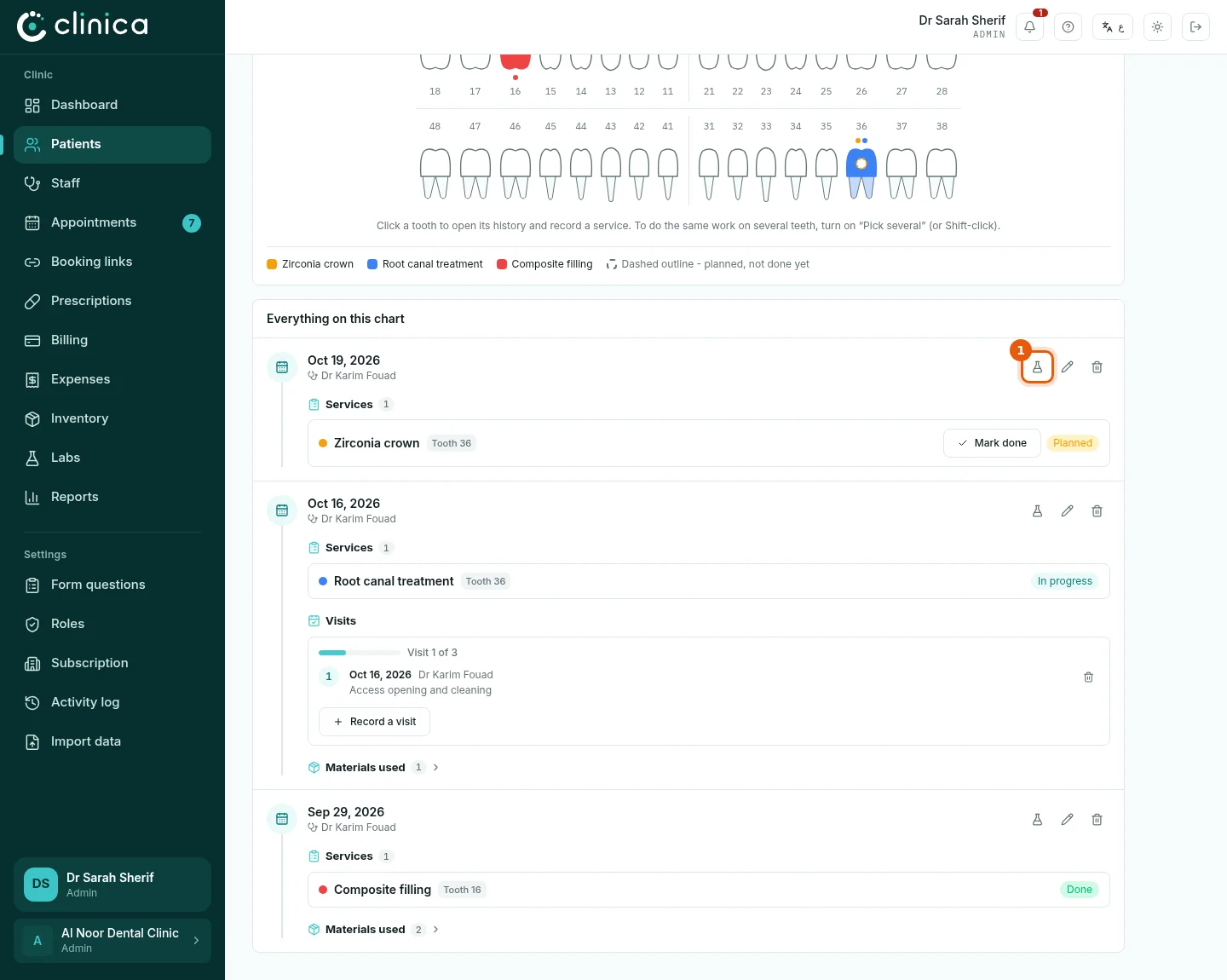
On the patient's chart, each recorded treatment has a lab button 1 Lab case for this session. It opens the same form already linked to the patient and that treatment, so the case and its work stay together. The patient's Lab tab lists all their cases.