Signing in
Signing in on a computer or a phone, a forgotten password, and a locked account.
1Open the sign-in page
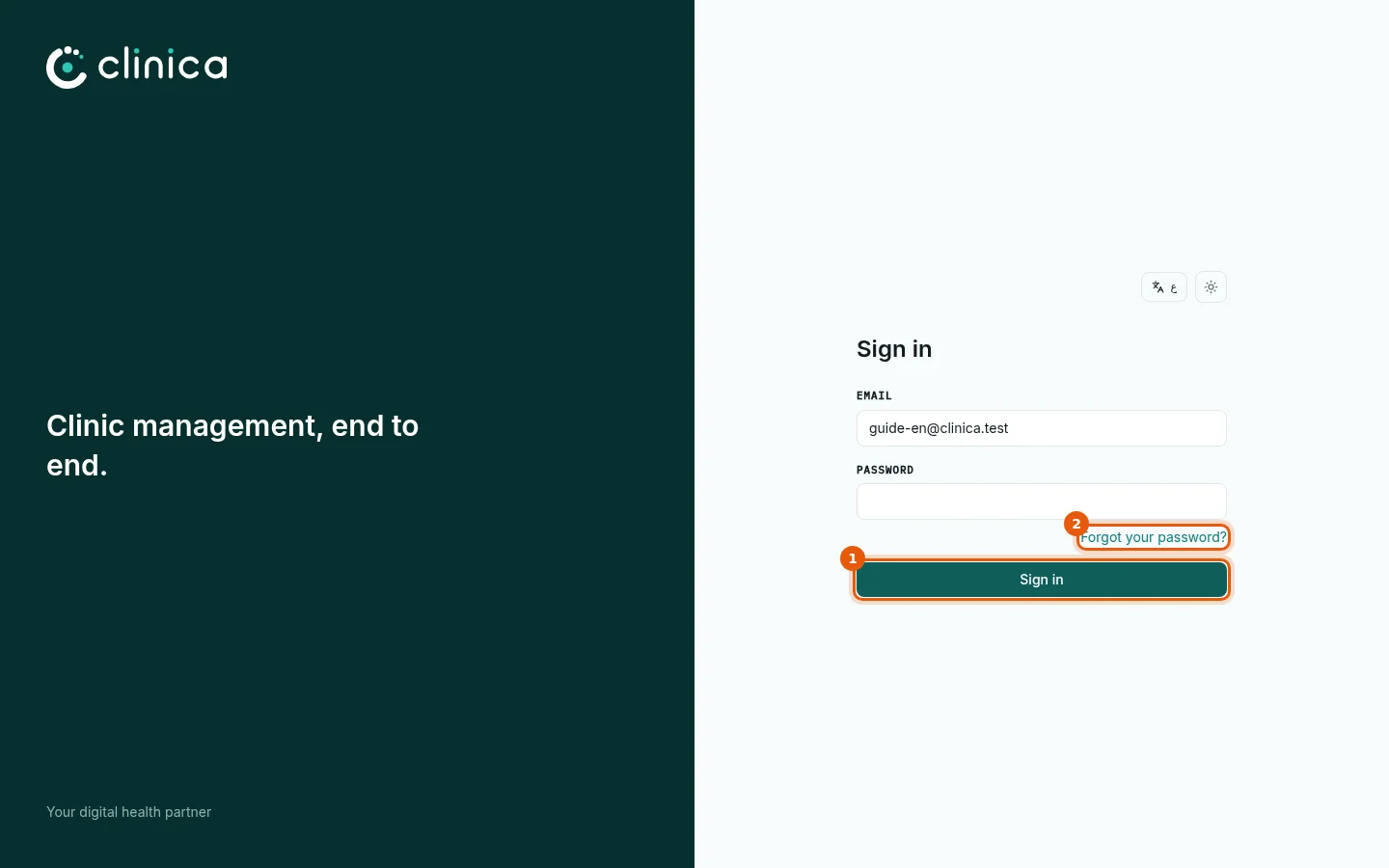
Go to clinica-cloud.com and press Sign in, or open clinica-cloud.com/app directly. Enter your email and password and press 1 Sign in. Each member of staff signs in with their own account, so every action is recorded under the right name.
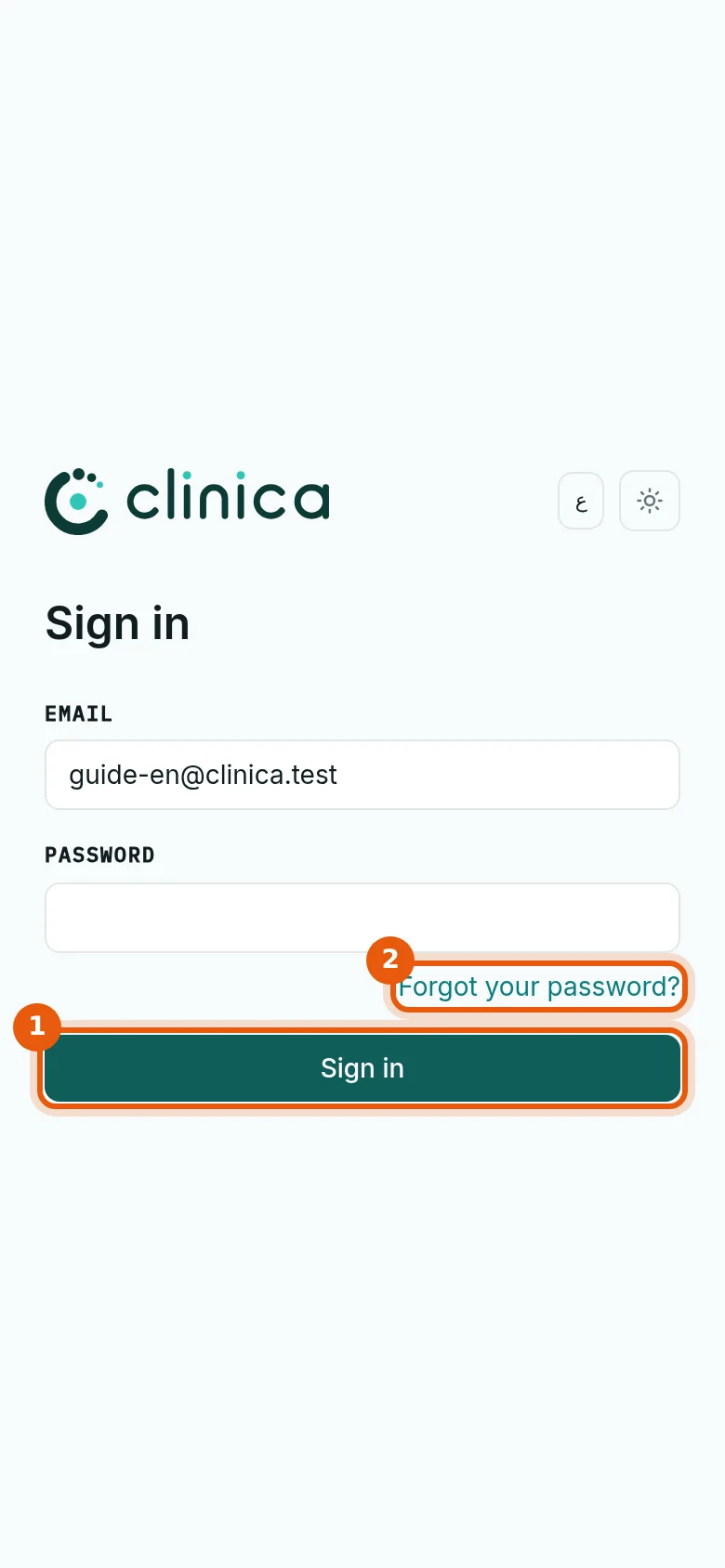 On a phone you can add Clinica to the Home Screen from the browser menu; it then opens like an app.
2More than one clinic
If your email is linked to more than one clinic, Clinica asks you to Choose a clinic after the password. Pick the clinic you want to work in; you can switch later from the clinic name at the bottom of the side menu.
3Forgot your password?
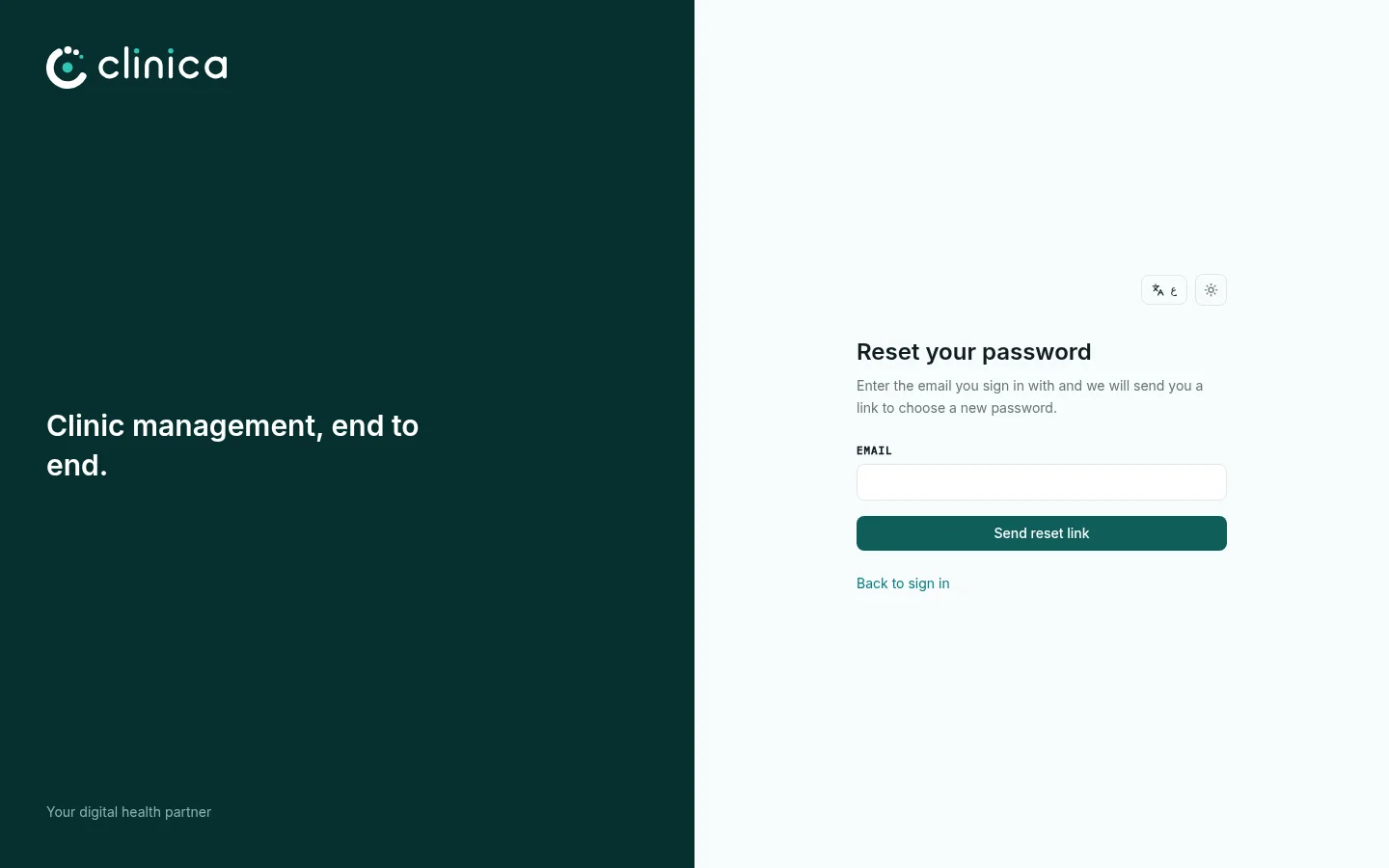
Press 2 Forgot your password? on the sign-in page, enter your email and press Send reset link. A link to choose a new password arrives by email.
4A locked account
After four wrong passwords in a row the account is locked to protect it, and an email with an unlock link is sent to its owner. Open the link, confirm, and sign in again.
To change your password at any time, open Account from your name at the top of the screen, then Password.