Inventory
Items, deliveries, and what each treatment uses, with warnings before you run out.
1The stock list
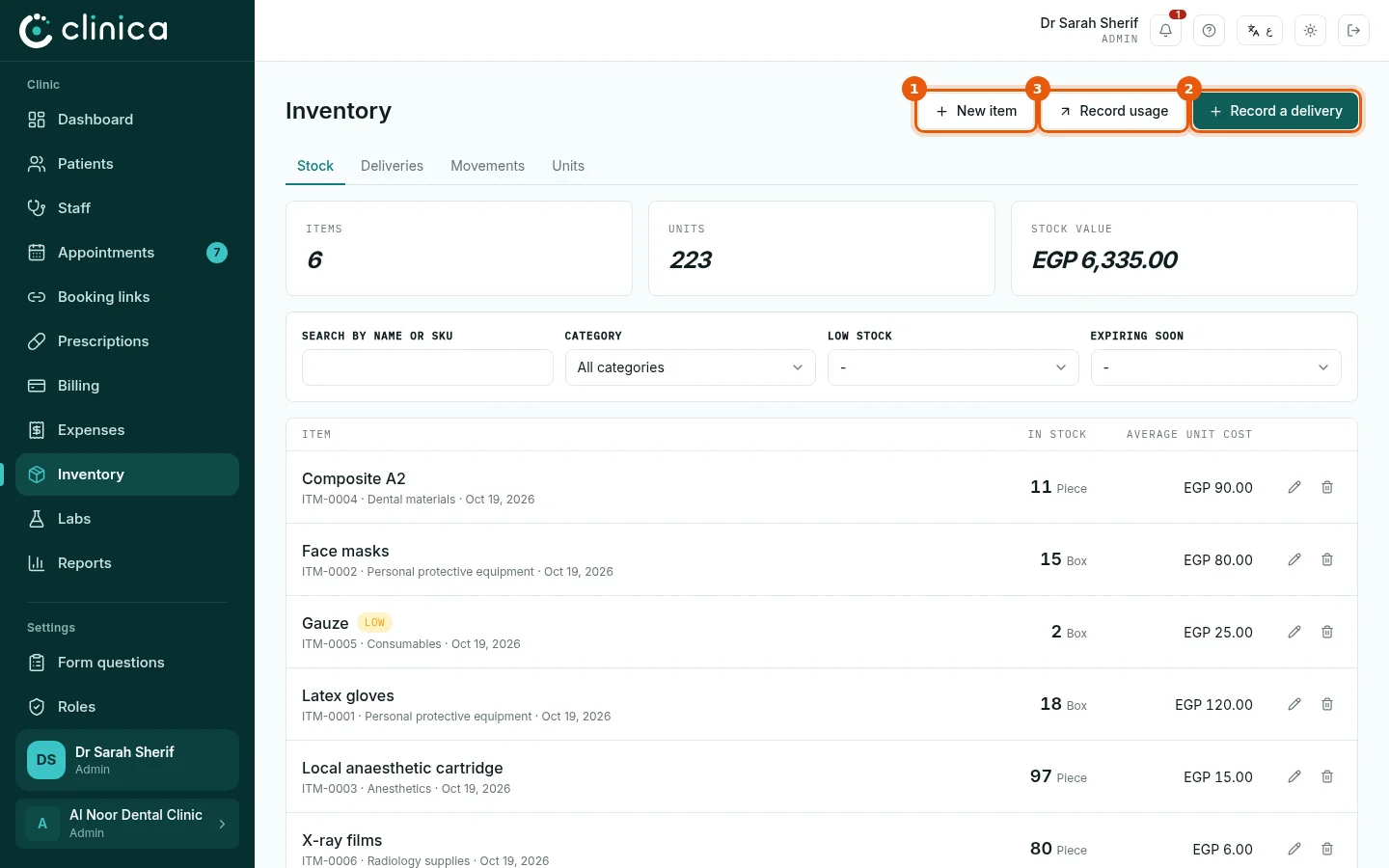
Open Inventory. Stock lists each item with the quantity in stock and its average cost; an item at or below its reorder level is marked as low. The three buttons are 1 New item, 2 Record a delivery and 3 Record usage.
2Add an item
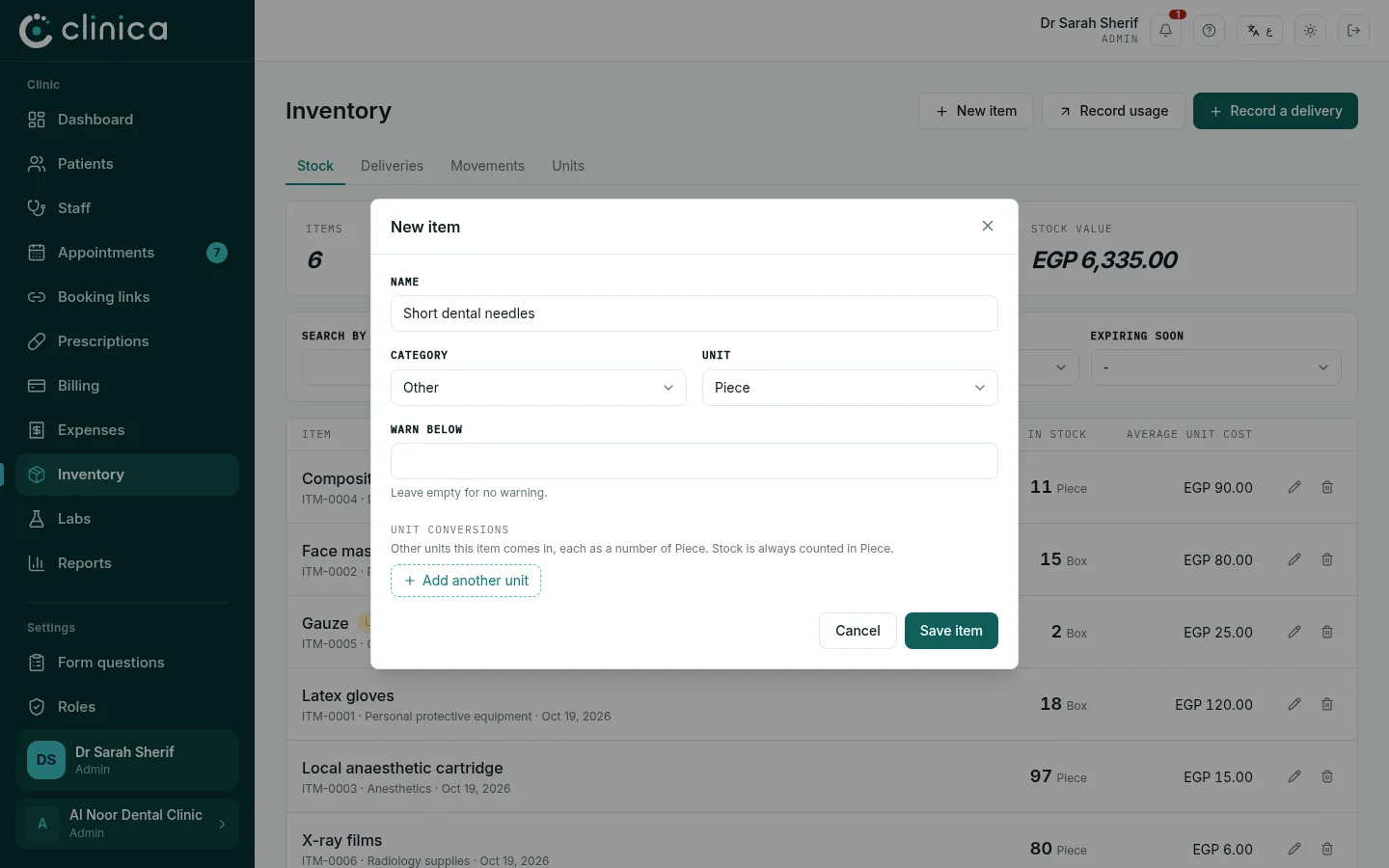
Write the item's name, choose its category and the unit you count it in, and set the reorder level: when stock reaches it, the item is marked low and you are notified. If you buy in boxes but use single pieces, add the conversion (for example, one box is 50 pieces). Press Save item.
3Record a delivery
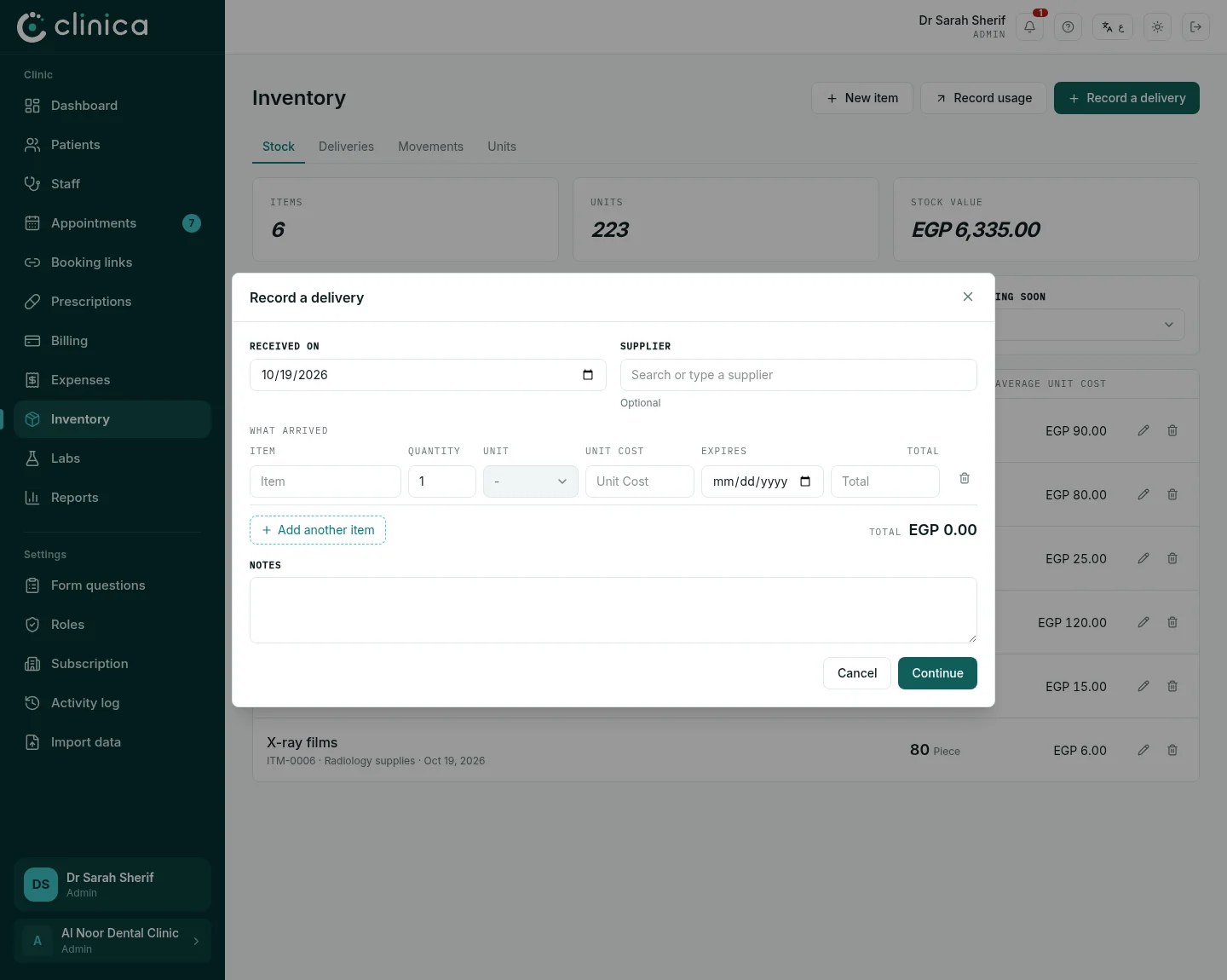
When stock arrives, press Record a delivery. Add each item with its quantity and unit cost, and the supplier and date if you like, then press Record delivery. The quantities are added to stock at once, and you can file the delivery as an expense in the same step.
4Take stock out from the inventory page
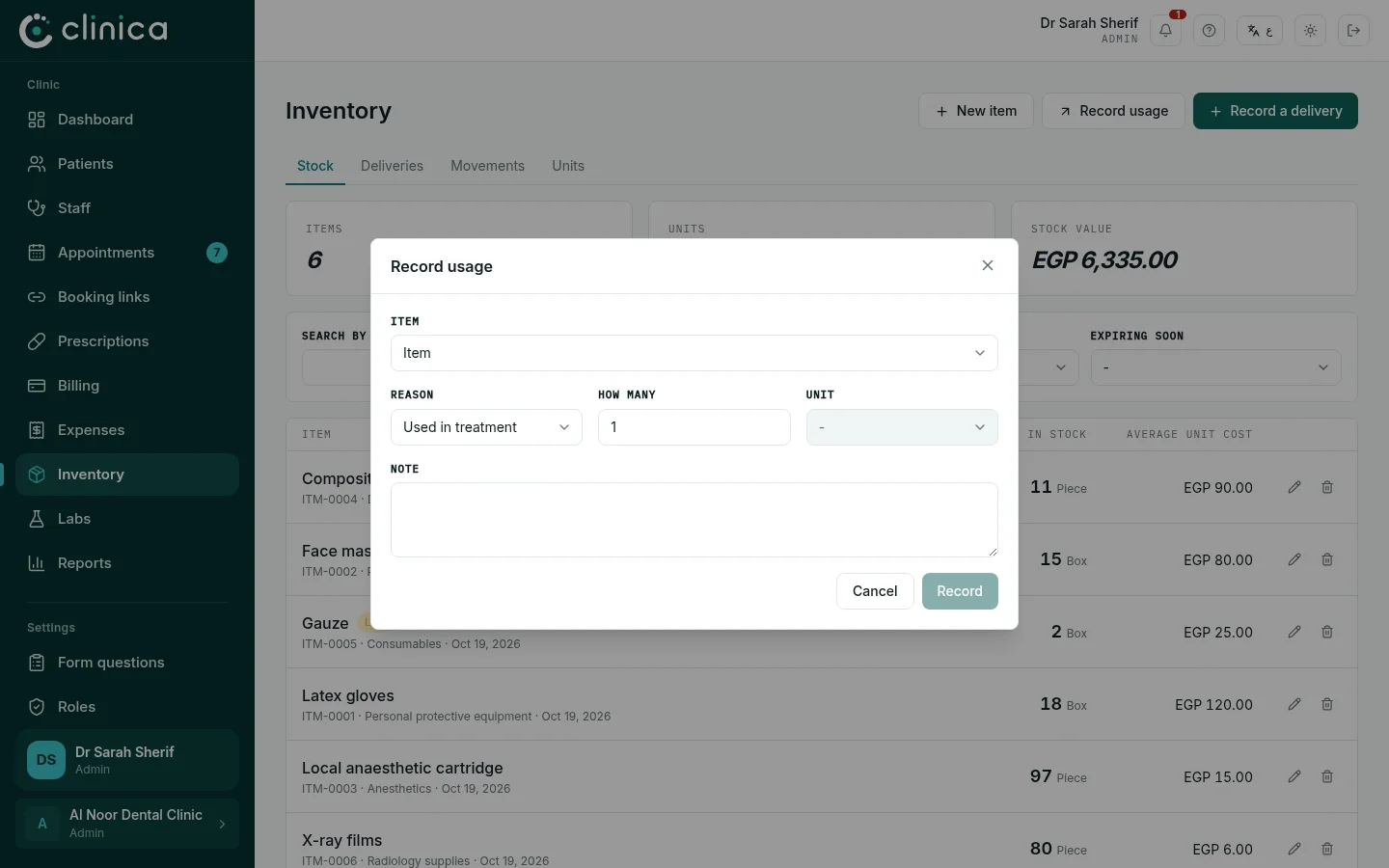
For anything not tied to a treatment, press Record usage: choose the item, the quantity and the reason (used, damaged, expired, lost, or a stock count correction), then press Record. Movements keeps the history of every change.
5Take stock out from the dental chart
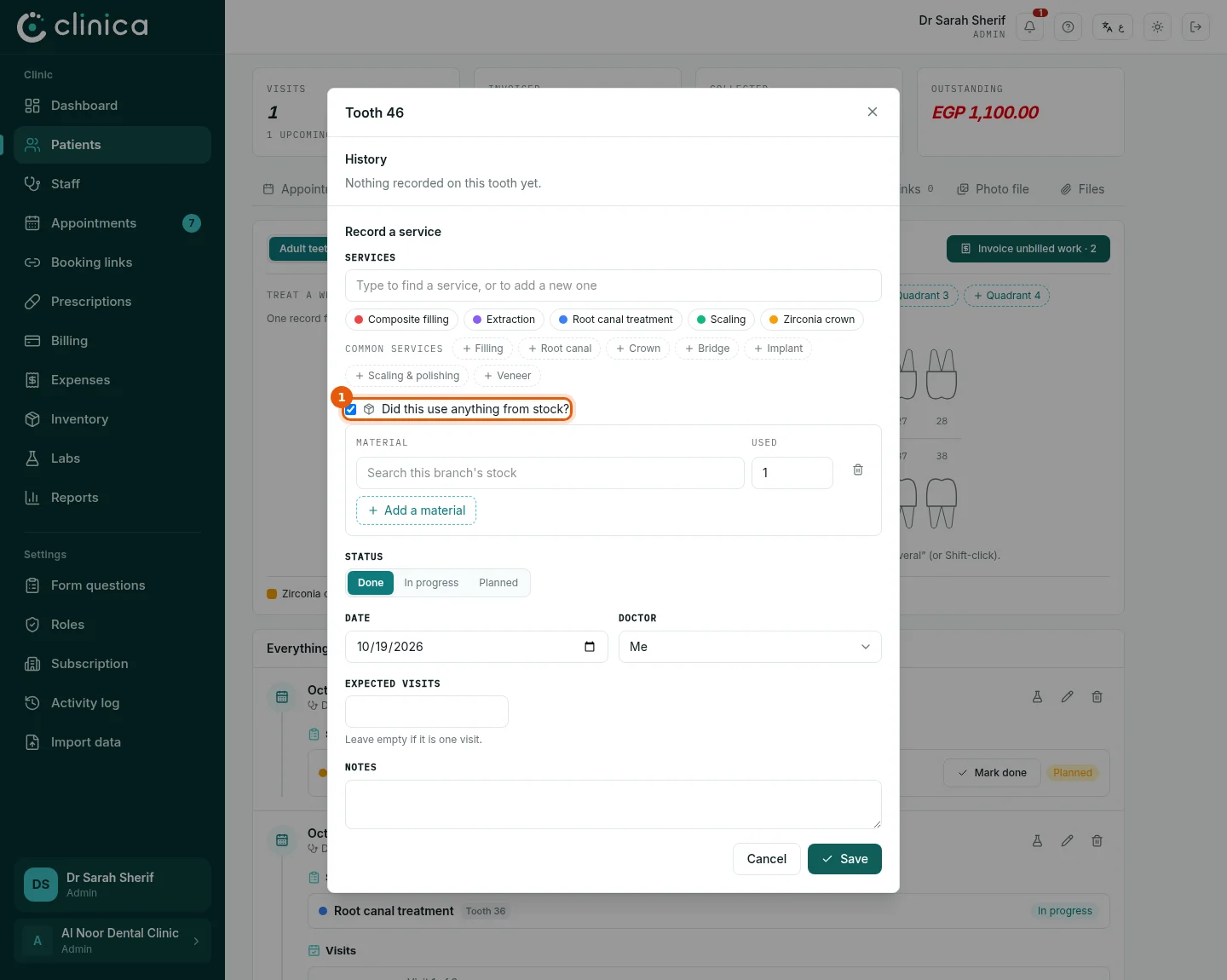
When recording a treatment on the chart, tick 1 Did this use anything from stock?, then choose each material and how much was used. Saving the treatment takes it off the stock, and the materials stay listed under the treatment so you know what each one cost.