Registering a new patient
Open a file for a patient: personal details, medical history and the signed declaration.
1Open the patient list
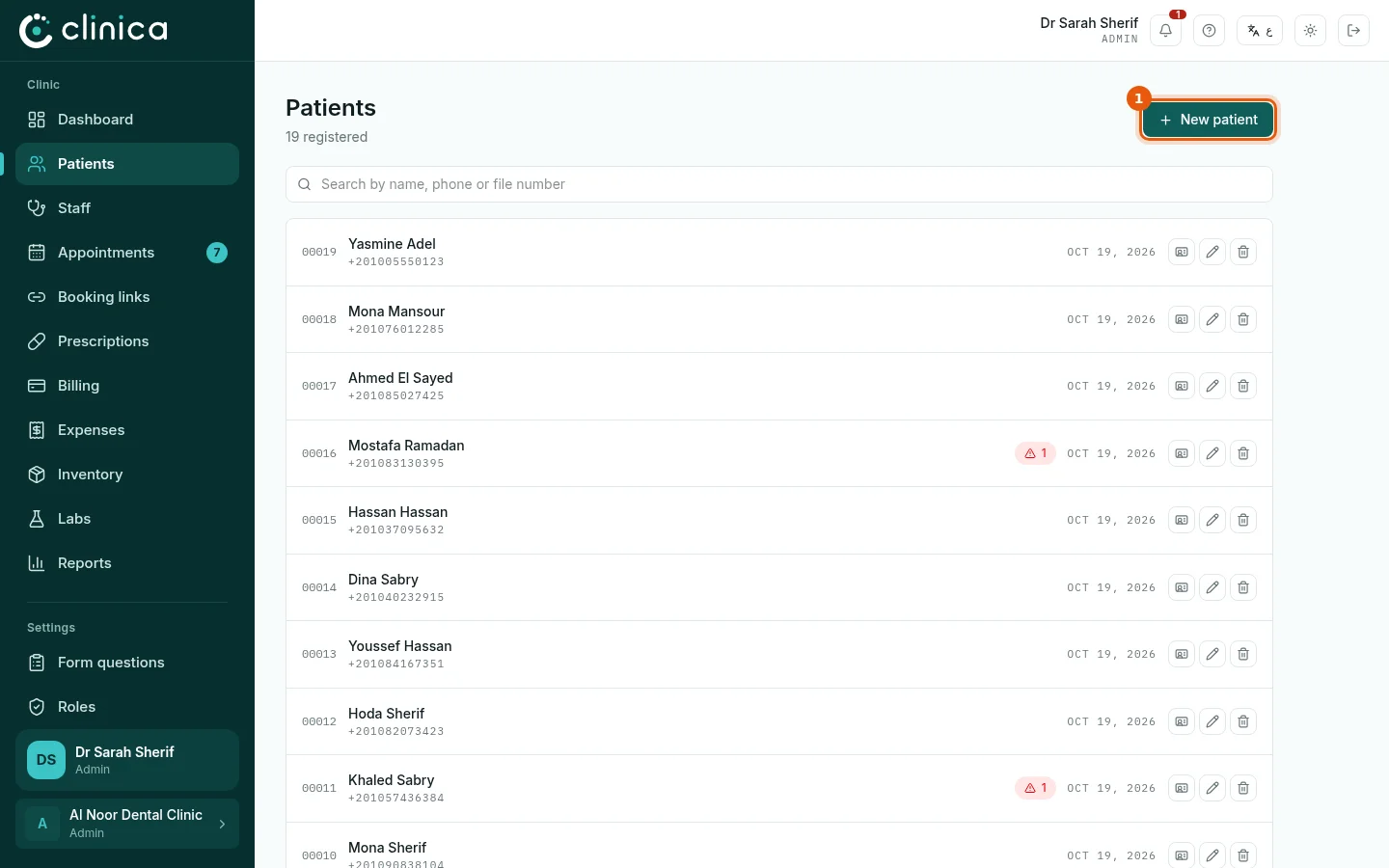
Choose Patients in the side menu. The list shows every patient with their file number and phone; search by name, phone or file number at the top. Press 1 to register someone new.
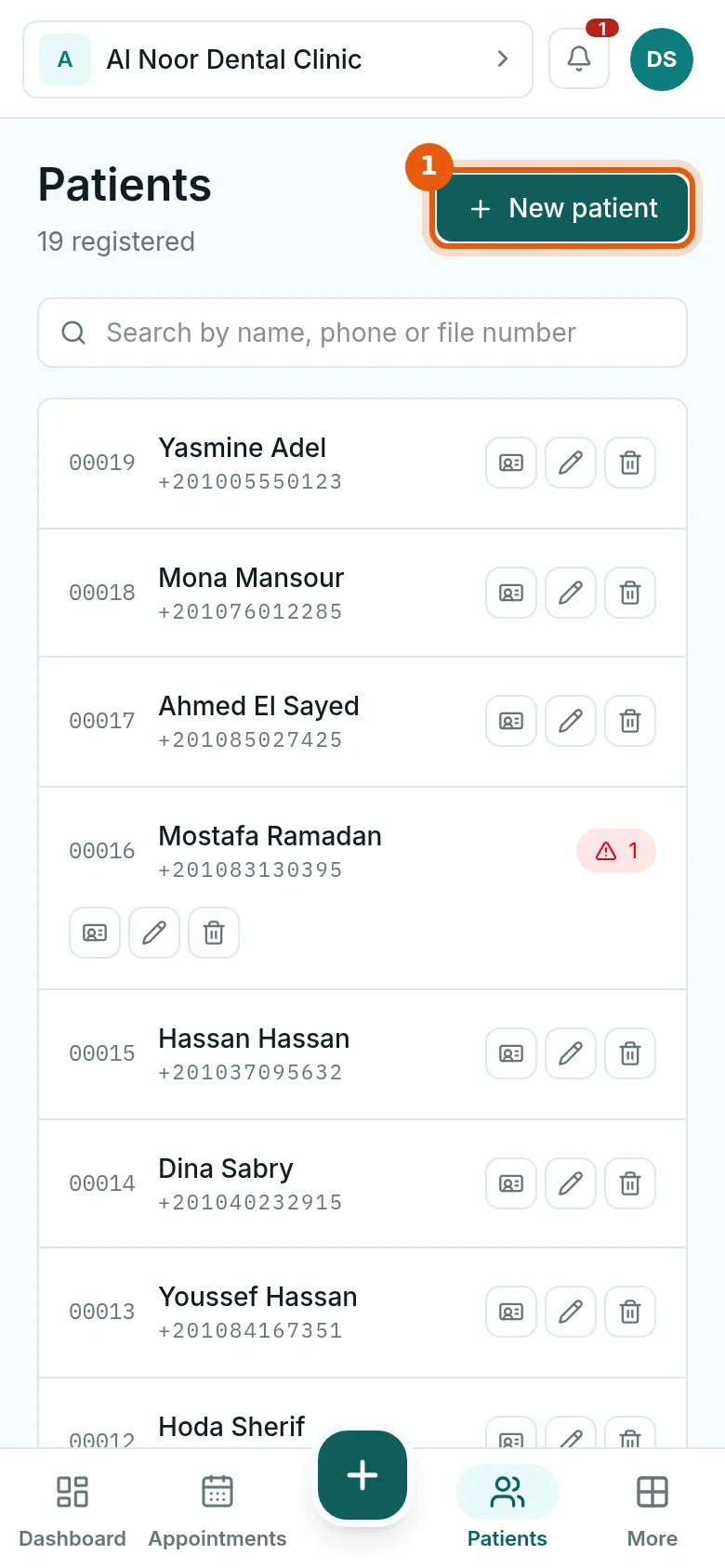 On a phone, the round + button at the bottom of the screen works from anywhere in the app: press it and choose New patient.
2Fill in the personal details
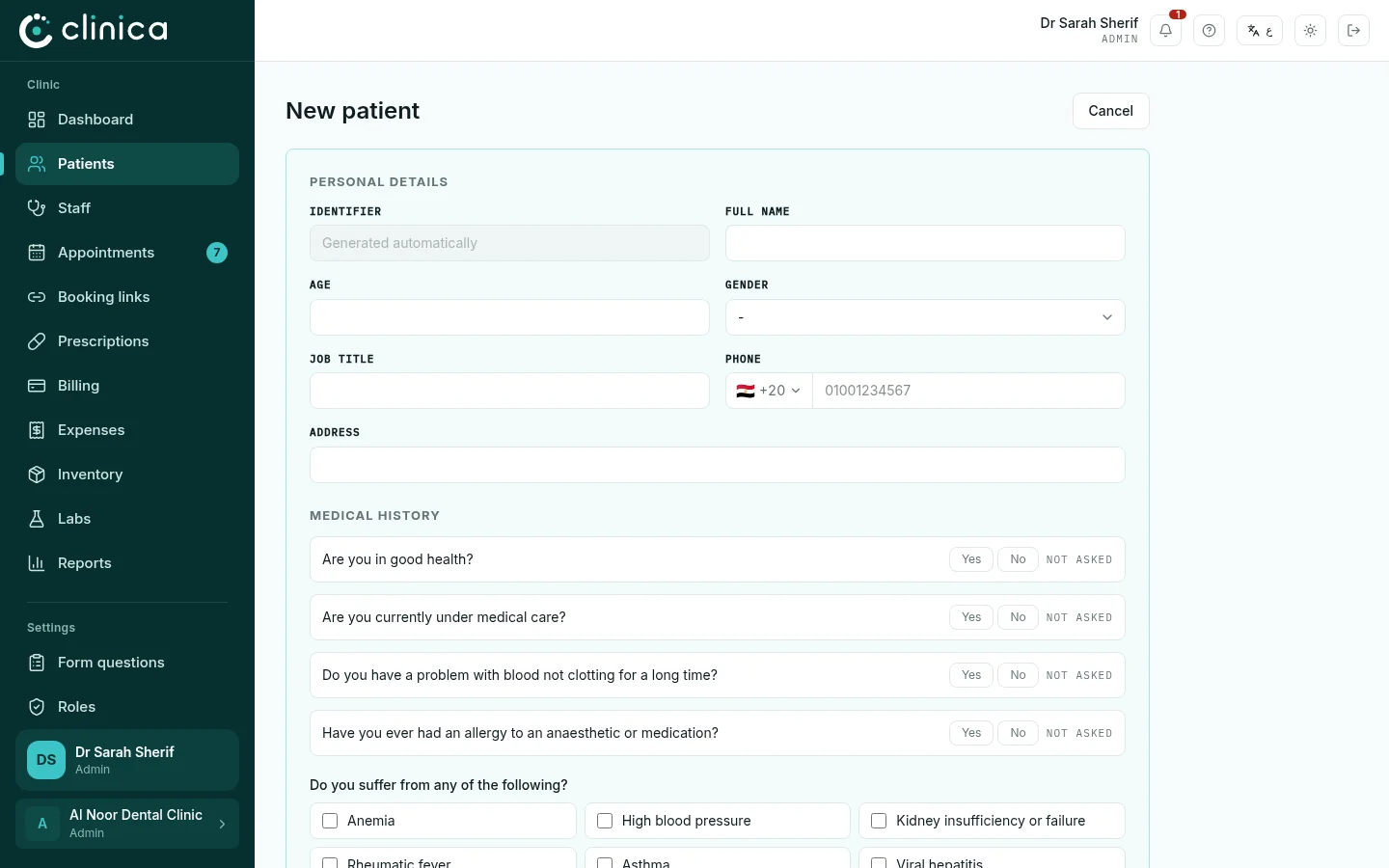
Write the patient's full name, age, gender, phone, job and address. The file number is created automatically when you save. Only the name is required, but a phone number lets you send the patient booking links, invoices and prescriptions on WhatsApp.
 A phone number can belong to one patient only. If it is already registered, the form tells you, so the same person is not given two files.
3Answer the medical history
Under Medical history, answer each question with Yes or No, or leave it as not asked. Tick any chronic conditions and habits. Conditions that matter during treatment appear later as a warning next to the patient's name.
These questions can be changed to match your clinic's own paper form; see the chapter on the patient form questions.4Record the declaration and save
If the patient has read and accepted the declaration, tick The patient has read and accepted the declaration. Then press Save patient. The patient now appears at the top of the list, and their file is ready for appointments, treatment and invoices.
Patients who book through a booking link fill in this form themselves, so reception does not have to type it again.