Booking links
Send a patient a link on WhatsApp; they pick a time and fill in their details themselves.
A booking link is a private page for one patient. It shows the free times in the doctors' schedules; the patient chooses one, fills in the clinic's form and confirms. The appointment then appears in your diary, and the link cannot be used again.
1Open booking links
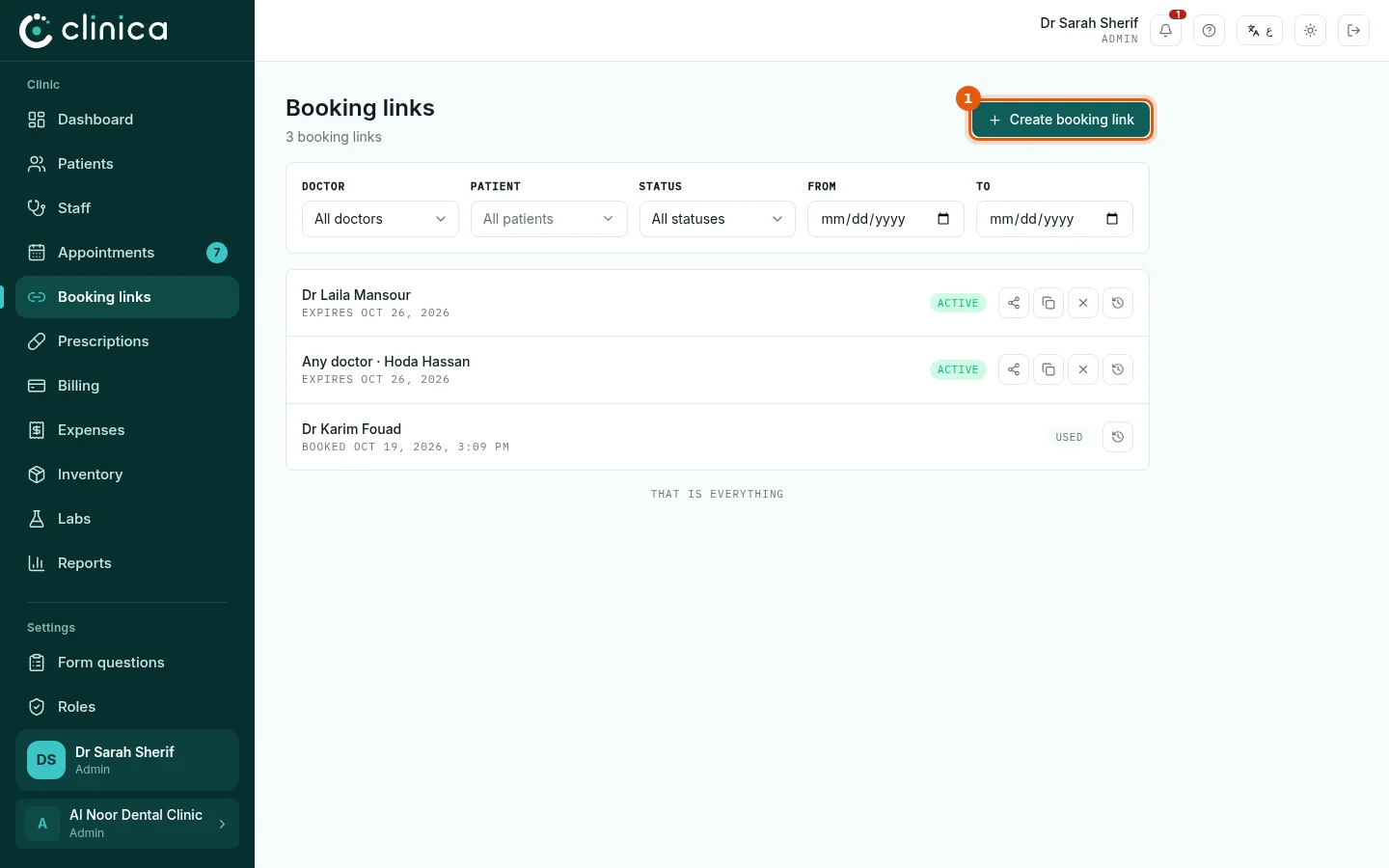
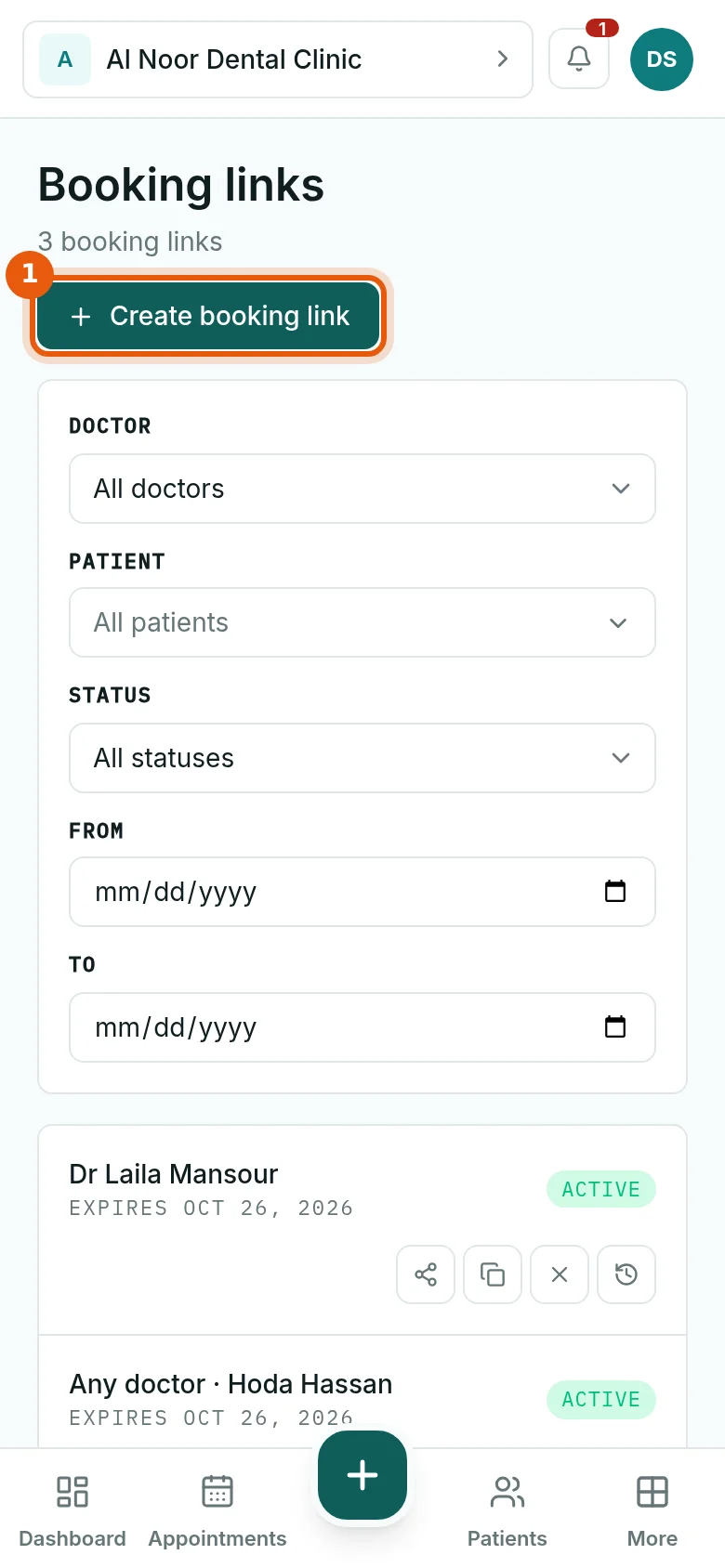
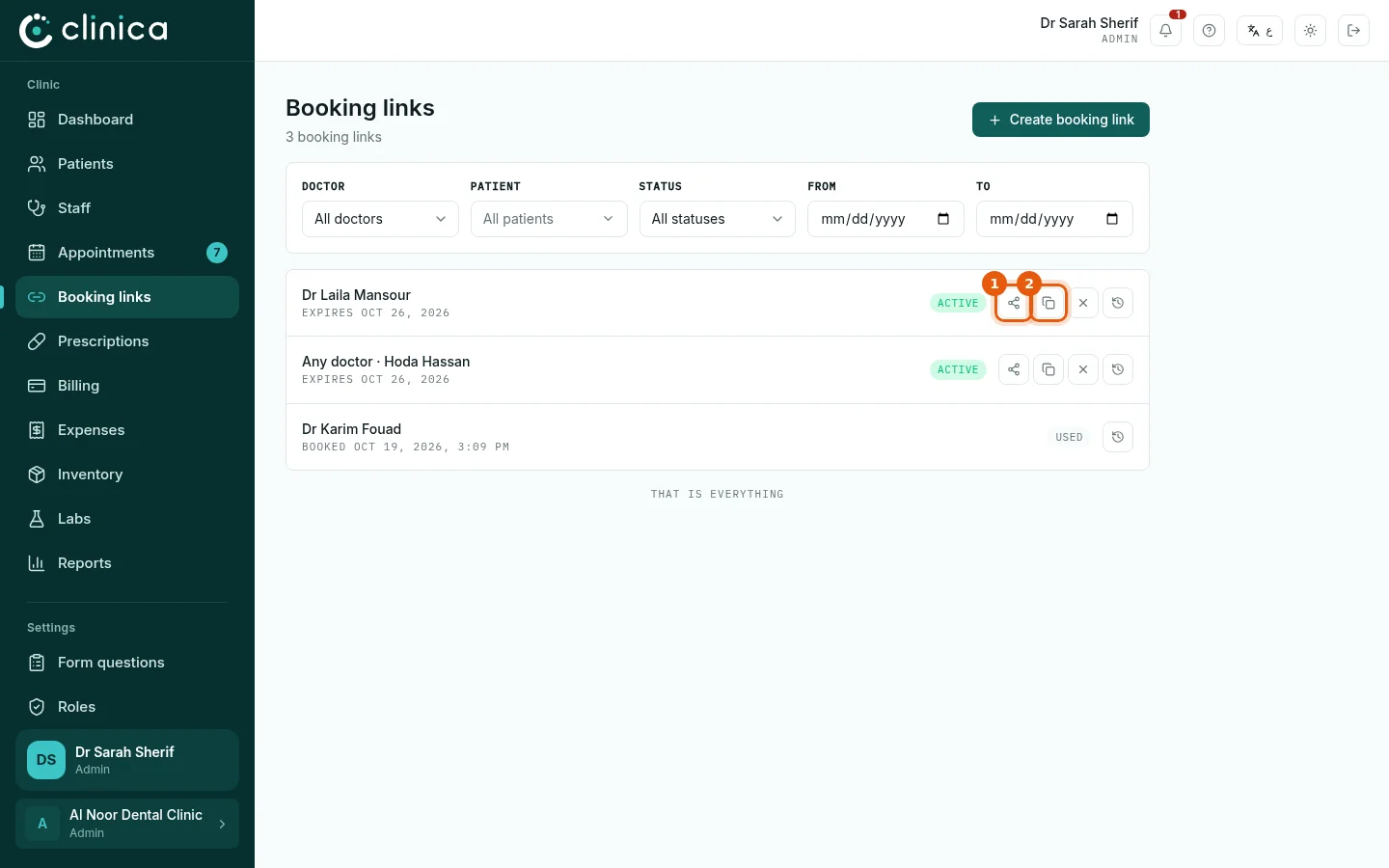
Choose Booking links in the side menu. Every link you have created is listed with its doctor, patient, expiry date and status. Press 1 to create a new one.
2Create the link
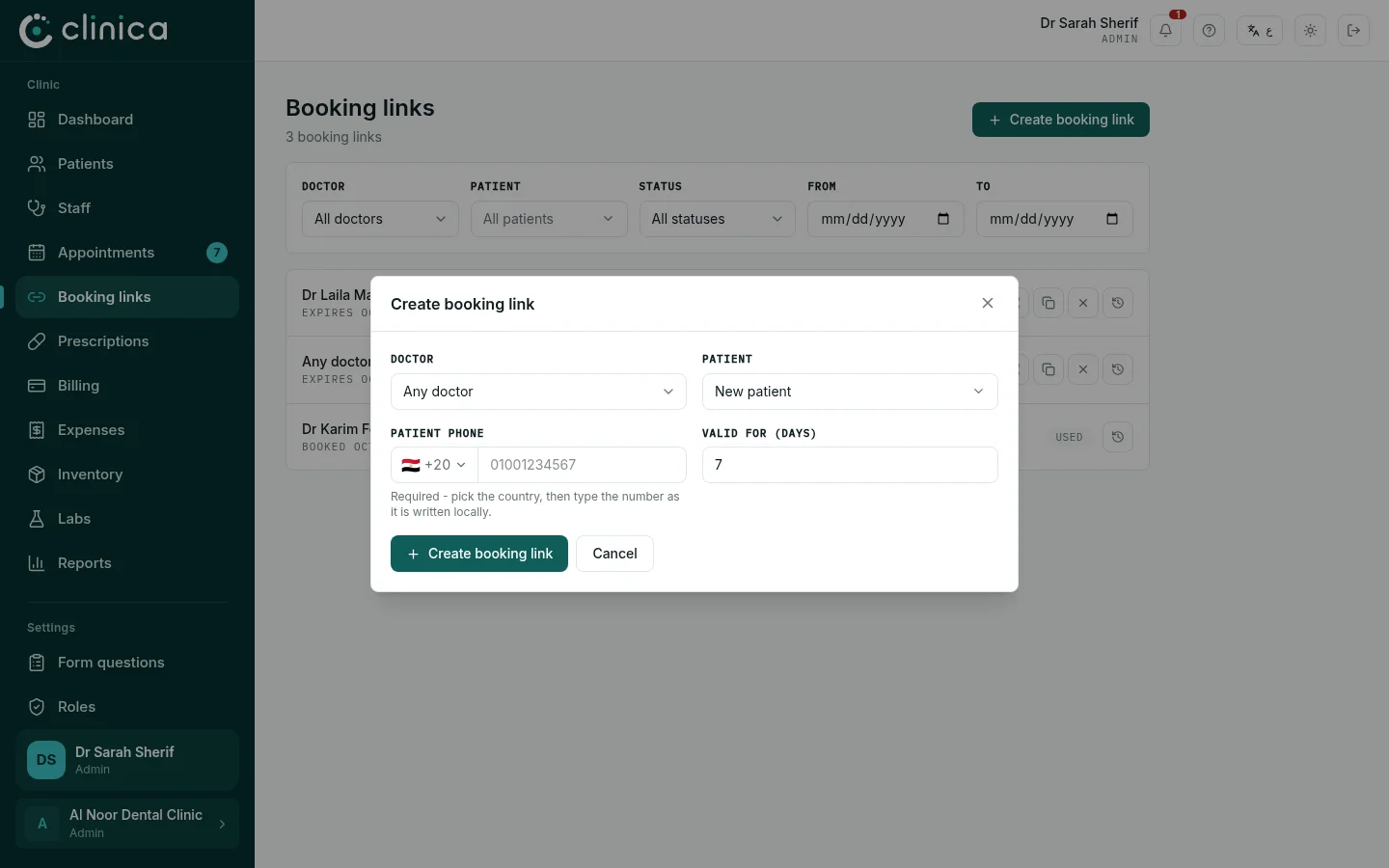
Choose the doctor, or leave Any doctor so the patient can pick any doctor's free time. Choose the patient if they already have a file, or New patient for someone new, then check the phone number the link will be sent to and how many days it stays valid. Press Create booking link.
 A link can only be created while the chosen doctor has free times in the schedule. If none are left, add working hours first.
3Send it to the patient
On the link's row, press 1 Send via WhatsApp: WhatsApp opens with a ready message containing the link, addressed to the patient's number. Or press 2 Copy link and paste it anywhere else, such as a text message.
4What the patient sees
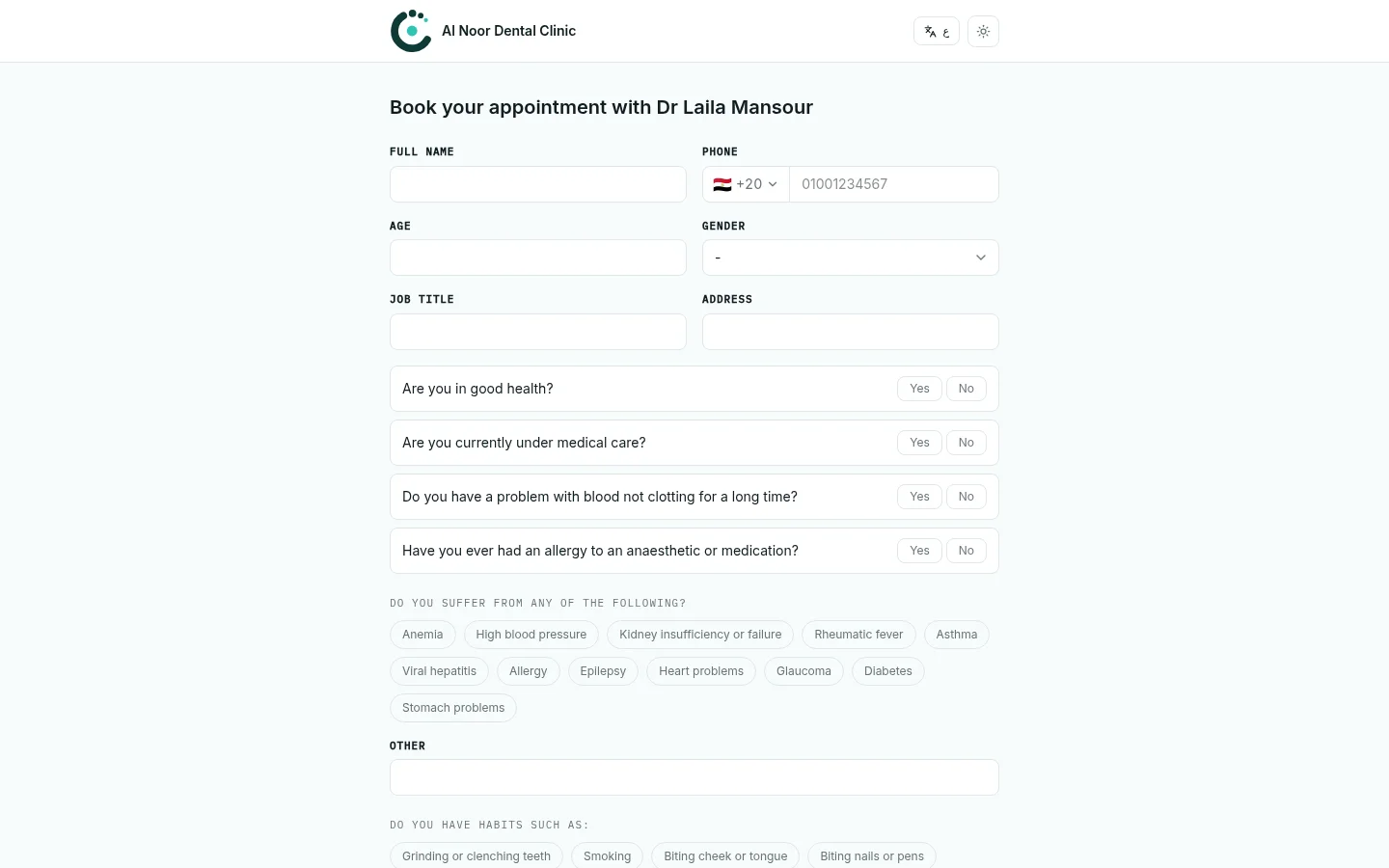
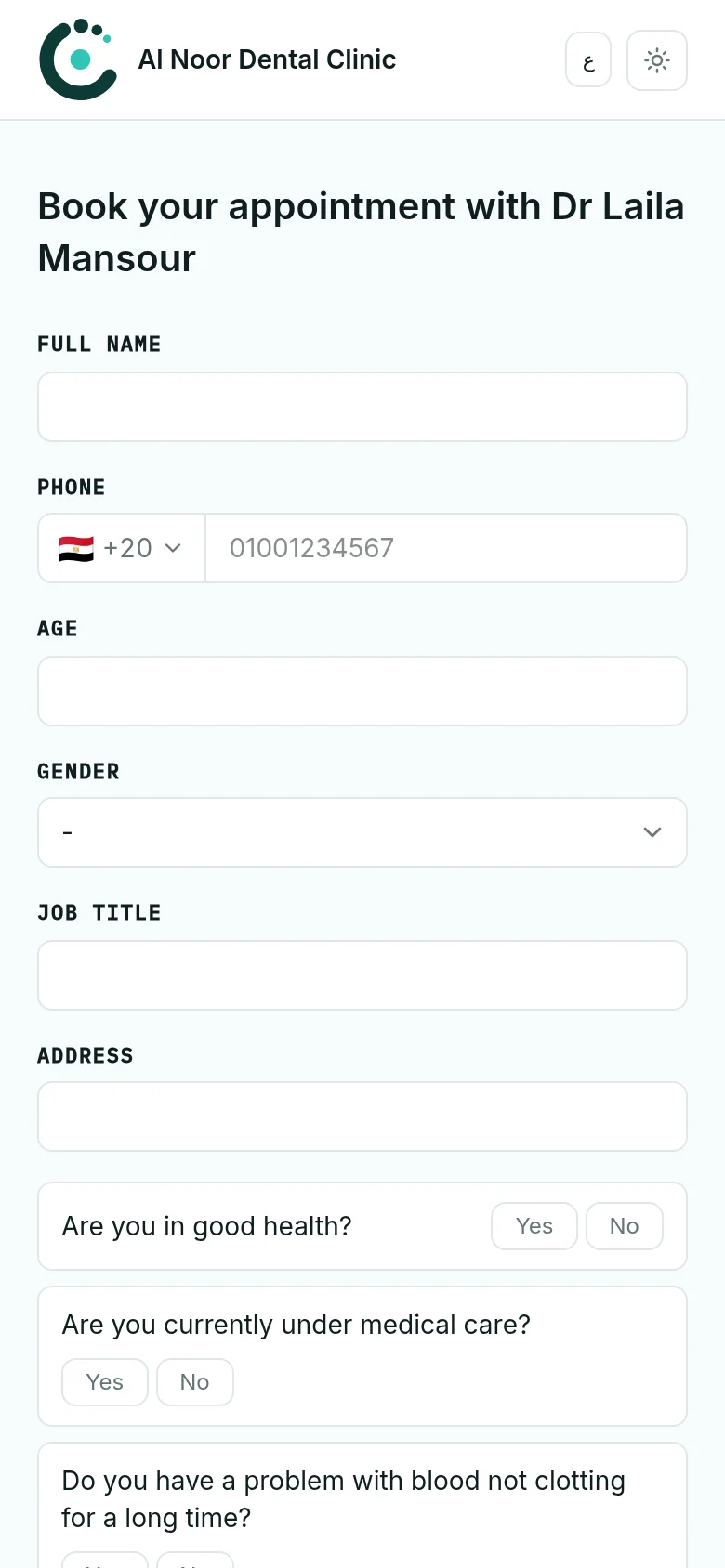
The link opens a page with your clinic's name and logo. The patient enters their details, answers the medical questions, chooses one of the free times and confirms. Nothing needs to be installed and no account is needed.
5Confirm the booking
The booking appears in Appointments as not yet confirmed, and you receive a notification. The number next to Appointments in the menu counts the appointments waiting for confirmation. Review the patient's details and confirm the appointment. The patient's file is created, or updated, from what they filled in.
A link that is no longer needed can be cancelled with Revoke; you will be asked for the reason, which stays recorded in the link's history.